Church Website Features
A digital connection card is a short online form that lets a church guest tell you who they are and how to follow up — usually filled out on a phone during or right after a service, in place of the paper card in the seat-back. Done well, it’s the single most important bridge between a first-time visitor and a second visit. Done the way most churches do it — too many fields, no clear next step, and no fast follow-up — it gets ignored.
This guide covers exactly what to put on a connection card (and what to leave off), shows you real church connection cards with what each gets right, compares the tools that power them, and gives you a copy-paste template plus the follow-up sequence that actually turns a submitted card into someone who comes back. There’s a free template download near the end.
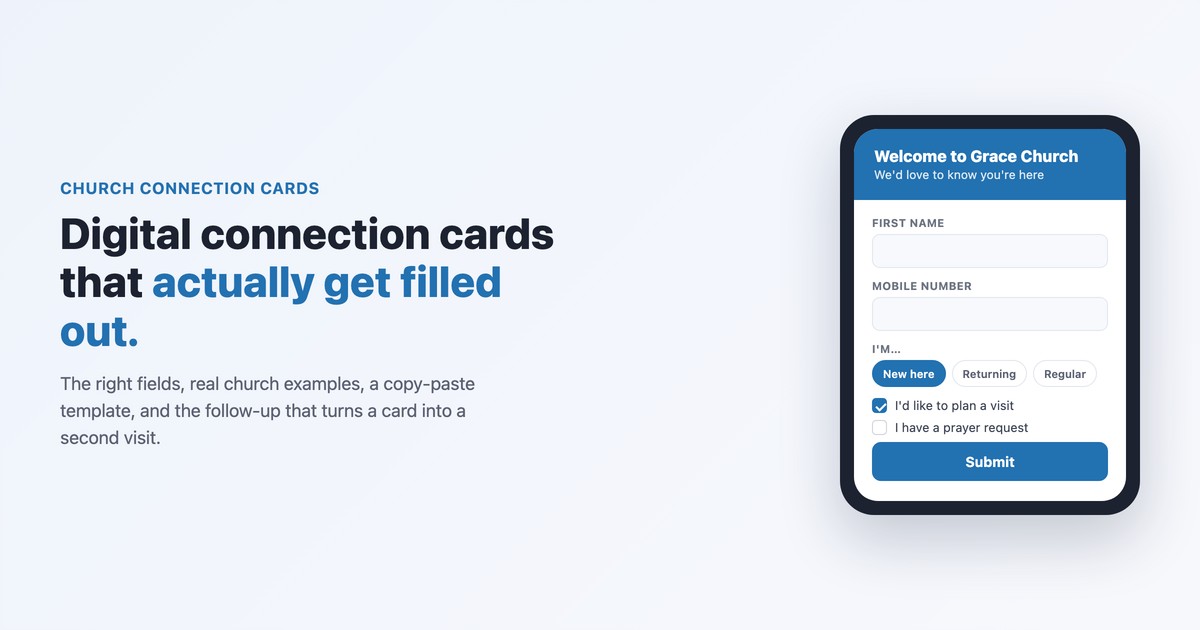
The paper “connection card” or “communication card” has been a church staple for decades: a guest writes down their info, drops it in the offering, and someone follows up. The digital version does the same job through an online form — reached by a QR code on the screen, a link in your app or website nav, or a texted keyword — with three big advantages: the information is legible and never lost, it lands instantly in a system your team can act on, and it can trigger an automatic, immediate follow-up.
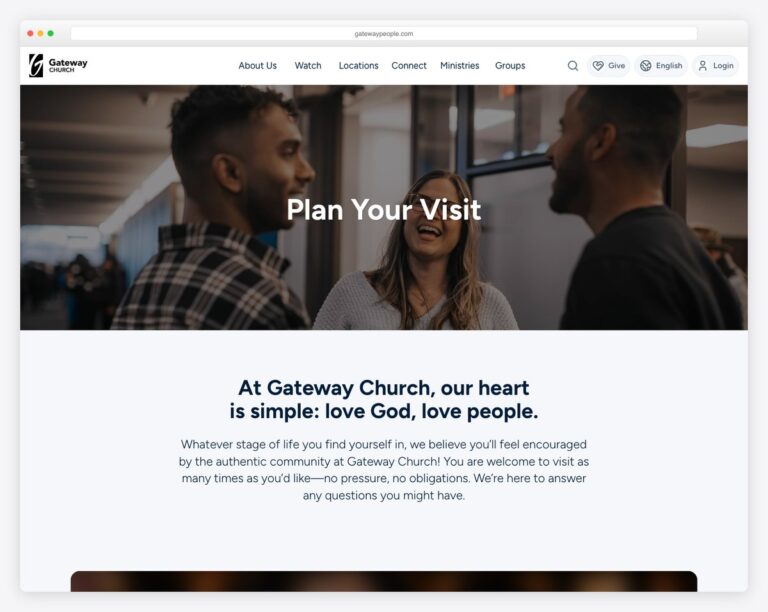
It’s a core piece of your church’s first-impressions system, working hand-in-hand with your Plan Your Visit page (which gets them in the door) and your homepage (where the “I’m New” path begins). The card is how a guest raises their hand — your job is to make raising it effortless.
The number-one reason cards don’t get filled out is simple: too many fields. Every extra box lowers your completion rate. The goal of the card is not to collect a full profile — it’s to get a name and one way to reach them, plus a hint of what they need next. You can learn the rest later.
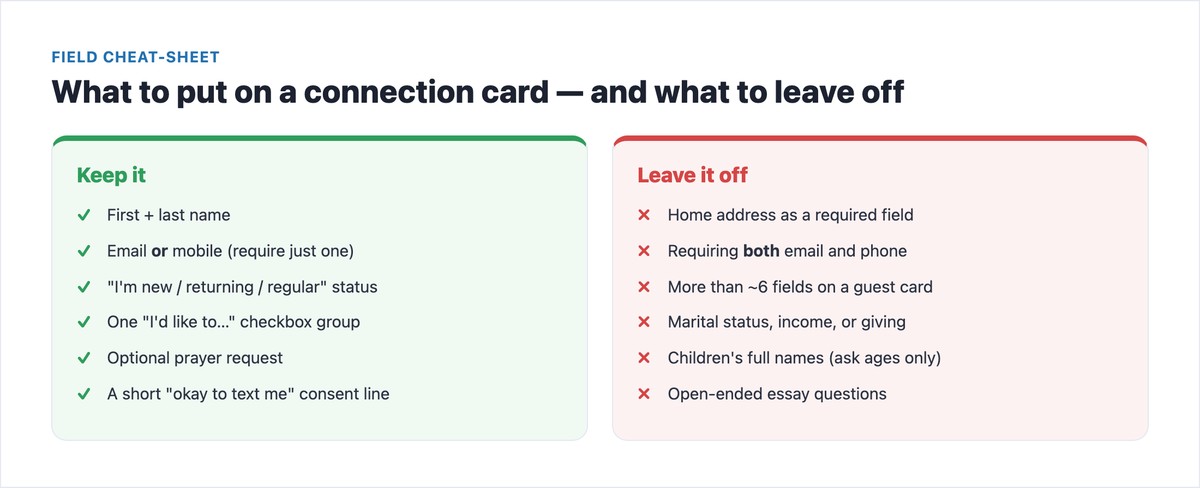
Keep the guest-facing card to about five fields, with no more than three required. Here’s the short card that consistently gets completed:
For a fuller “next steps” or member card, you can add optional fields like preferred contact method, children’s ages (ages only — never full names), “how did you hear about us?”, a birthday/anniversary (month and day), and a short consent line (“It’s okay to text or email me”). Keep them optional. And the one field to be careful with: a home address. Asking for a full address up front is one of the fastest ways to kill completion — make it optional, or collect it later once someone’s engaged.
Here are real, live church connection cards. Several run on Planning Center’s Church Center — the most common tool — but the principles apply in any form builder. Notice how the best ones stay short and lead with “why are you here?” rather than “give us your data.”
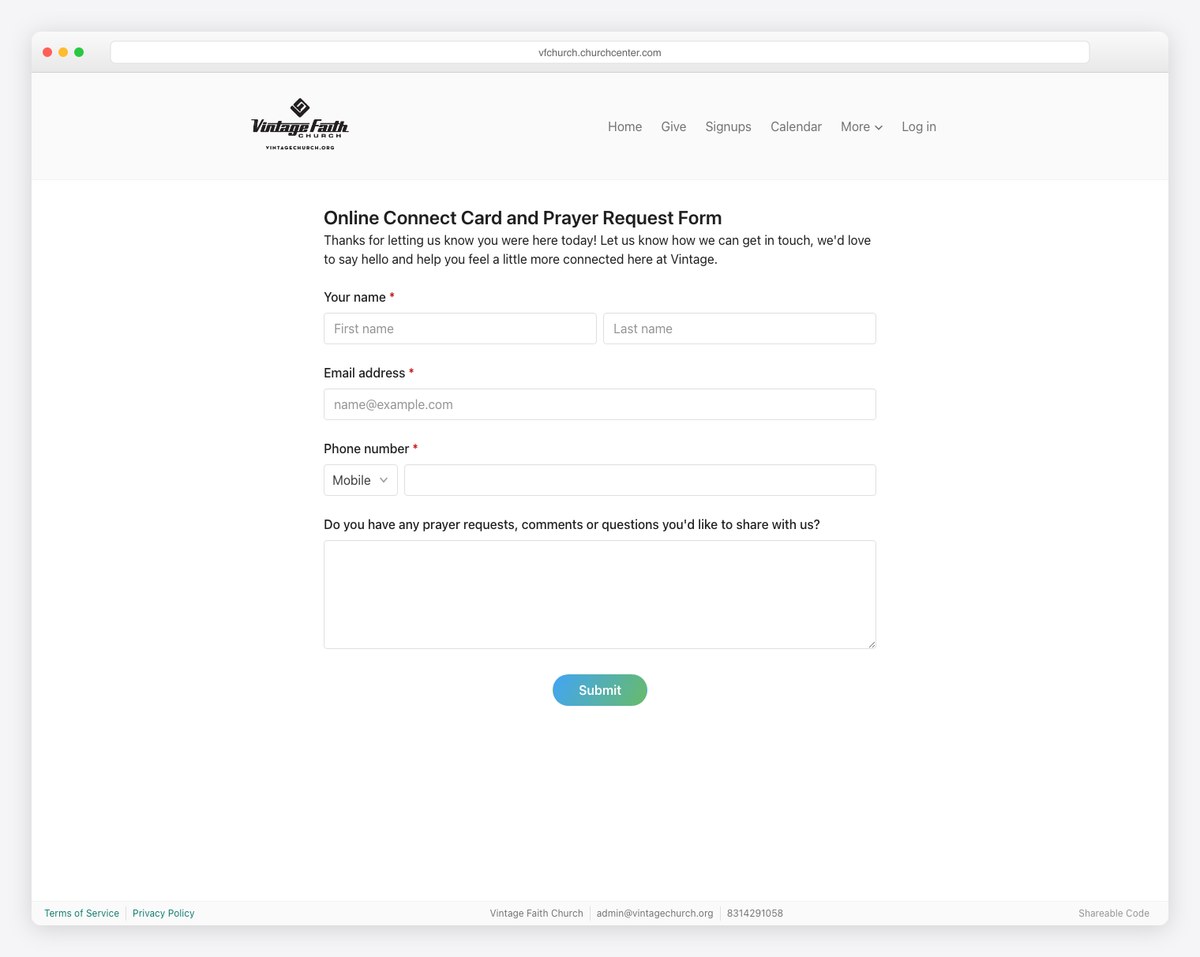
Vintage Faith Church is the model short card: name, email, phone, and a single prayer-request field, all on one screen. It combines a connection card and a prayer request without feeling long — exactly the low-friction approach that gets completed.
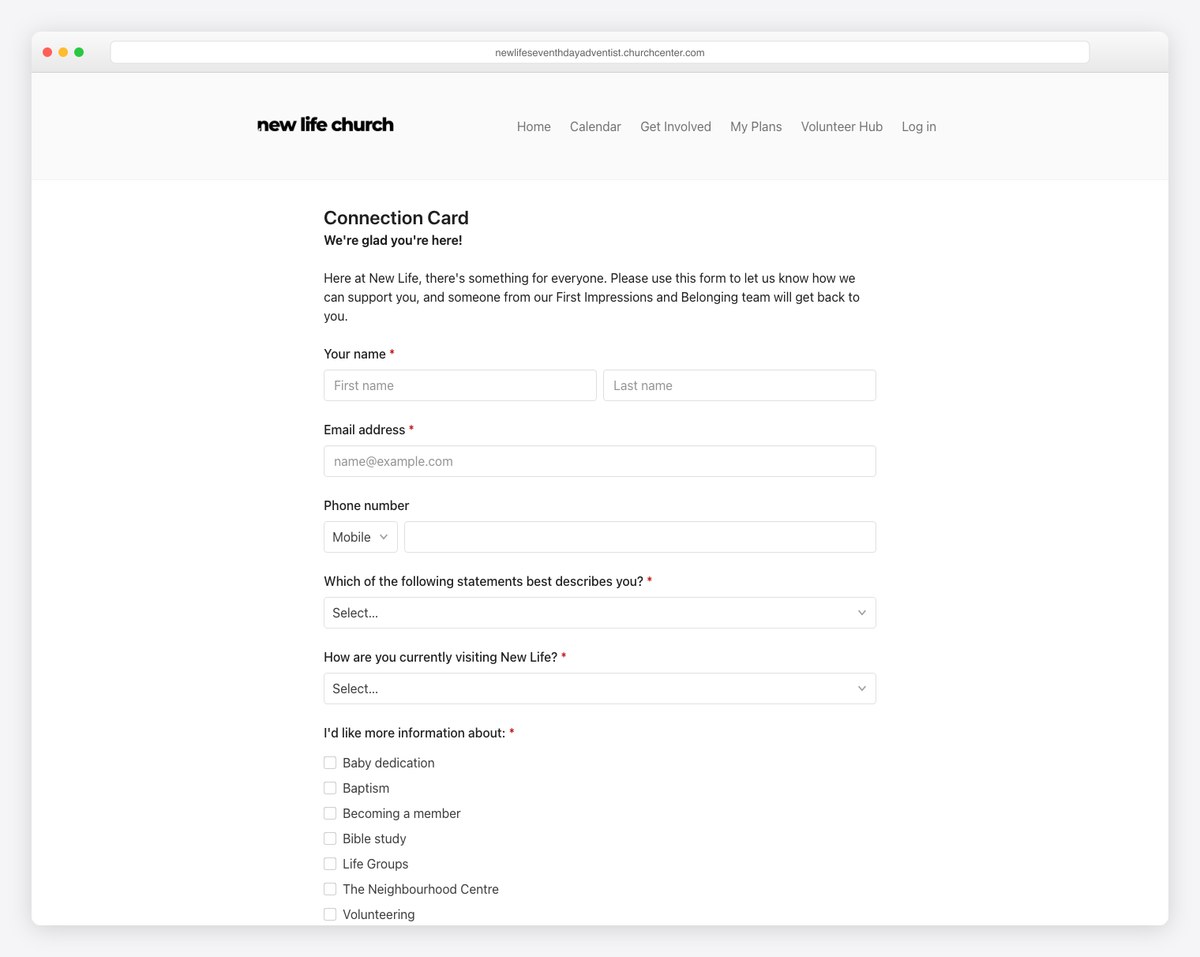
New Life Church nails the two highest-value fields: a “which best describes you?” status question and an “I’d like more information about…” checklist (baptism, becoming a member, Bible study, Life Groups). That single checklist tells the follow-up team exactly which next step to offer.
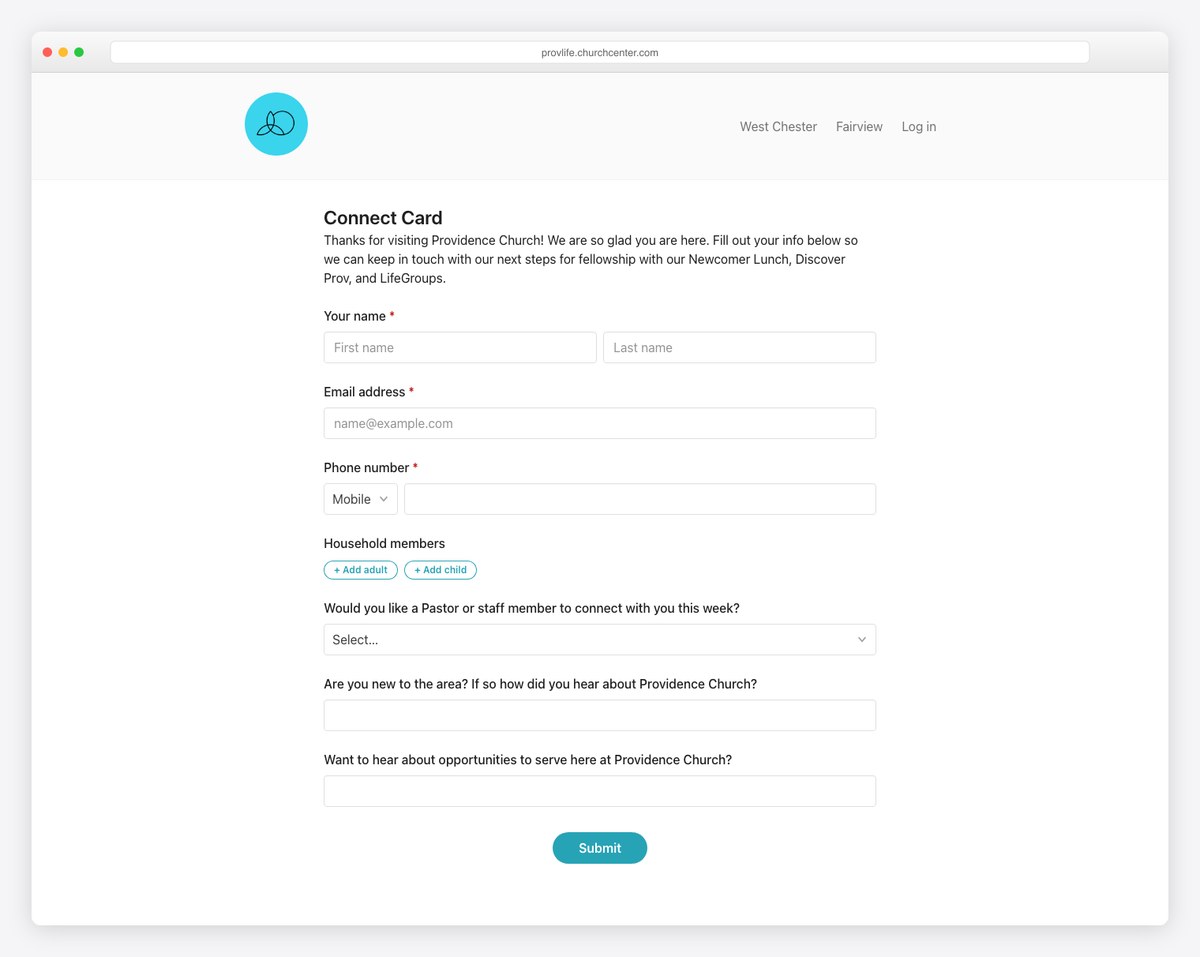
Providence Church ties the card to concrete next steps — “Would you like a pastor to connect with you this week?”, “Are you new to the area?”, and an invitation to a Newcomer Lunch and LifeGroups. The questions are warm and specific, not a data grab.
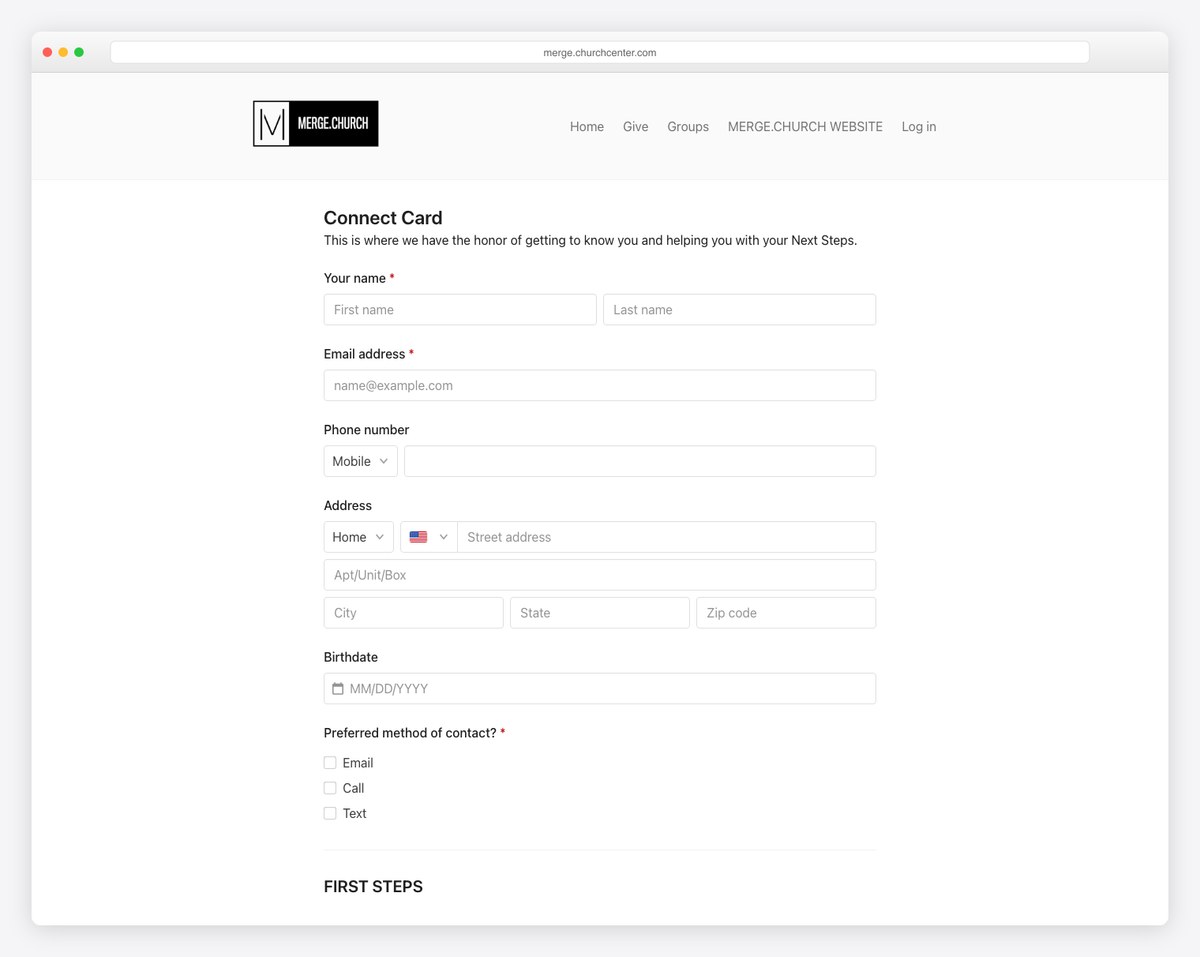
Merge Church opens with a genuinely warm line (“this is where we have the honor of getting to know you”) and asks for a preferred method of contact — email, call, or text. Letting guests choose how you reach them is a small touch that makes the follow-up land better.
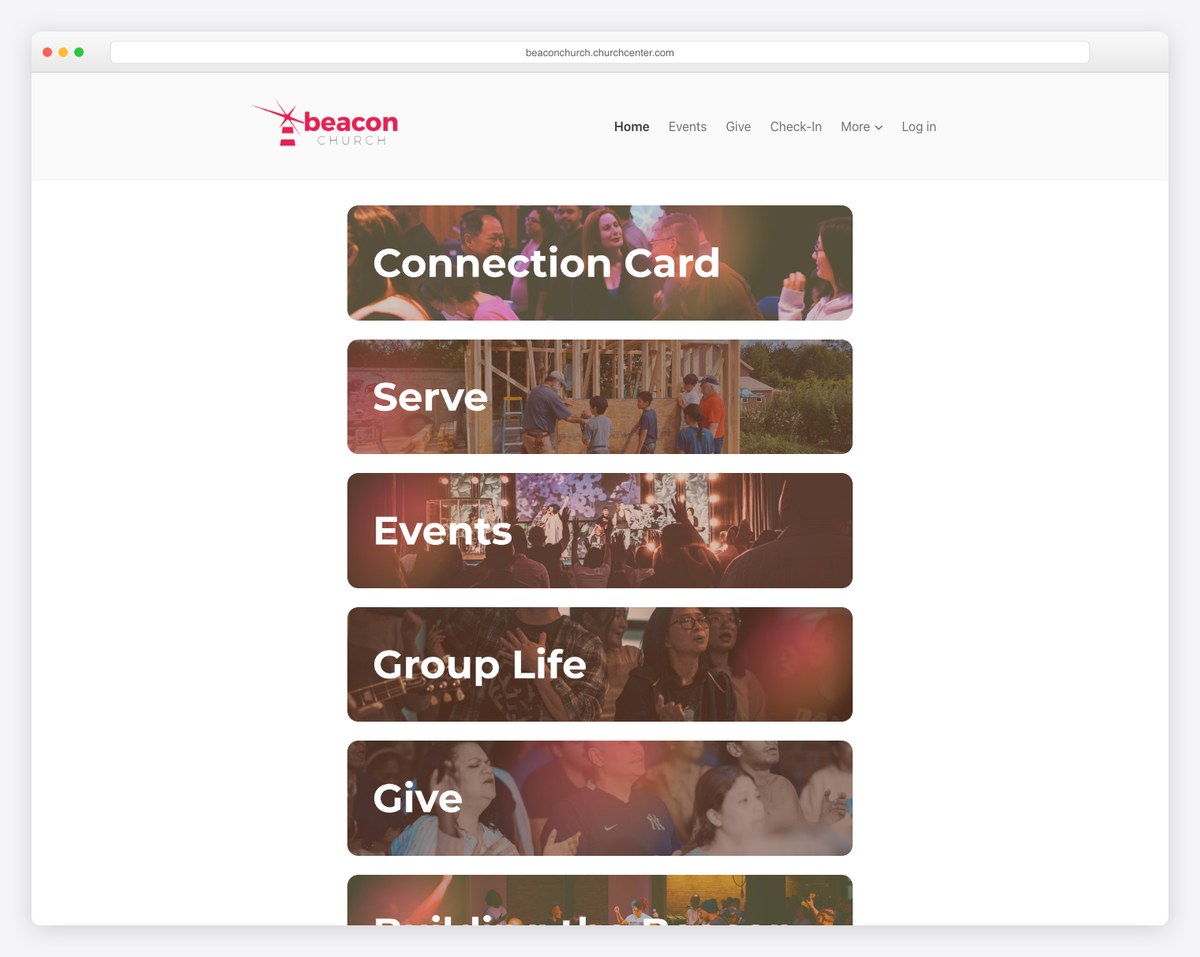
Beacon Church shows the card can be a branded, on-brand landing page rather than a plain form — “Connection Card” sits alongside Serve, Events, Group Life, and Give as clear next-step tiles. A good pattern when the card lives on your own site or app.
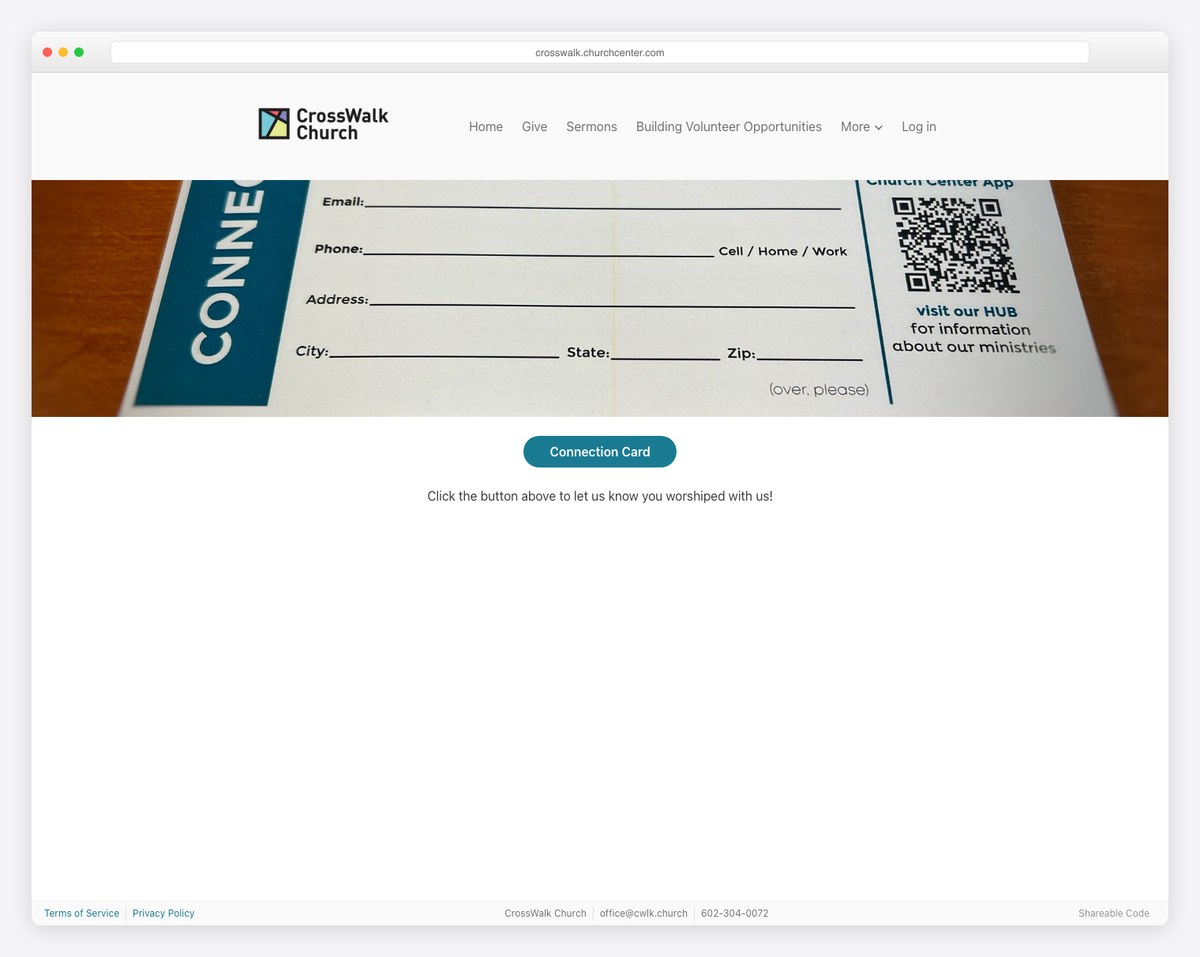
CrossWalk Church bridges paper and digital — it shows the familiar physical card alongside a QR code and a “Connection Card” button, so guests can fill it out however they prefer. A smart transition for churches moving their congregation from paper to a form.
You don’t need fancy software to start — a form on your website works. But dedicated tools add automatic follow-up, text keywords, and a place for submissions to live. Here’s how the main options handle digital connection cards.
| Tool | How its connection card works | Cost |
|---|---|---|
| Planning Center (Church Center) | Native Forms with a public link or embedded page; submissions land on the person’s profile and can trigger workflows | Free tier; paid add-ons |
| Tithe.ly | Connect-card form synced to its ChMS; NFC “Tap” devices can route in-room guests to the card | Free tier; paid messaging |
| Subsplash | Connect card embedded in the church app/website with interest tracking | Paid platform |
| Breeze ChMS | Online form feeding Breeze with simple first-guest tagging and follow-up | Paid (flat-rate) |
| Text In Church | Text-a-keyword or QR delivers the card; submissions auto-enter a text + email follow-up workflow | Paid (free trial) |
| Gloo | QR-scan card with free texting and ready-made “new here” / “prayer” follow-up workflows | Free tier + paid |
| Clearstream | Keyword to a short code (94000 / 97000) delivers the form; phone auto-captured; optional ChMS sync | Card free; texting paid |
| ChurchTrac | Pre-built “Form Card” shared via QR; responses flow into ChurchTrac | Low-cost; free trial |
| DIY site form (Wix / Squarespace / WordPress) | A form block or plugin on a /connect or /next-steps page that emails your team | Free–low |
| Google Forms | Free form shared by link or QR; responses to a spreadsheet (no automation without add-ons) | Free |
If you already use a church management system, use its built-in card so submissions land where your team works. If you’re starting from scratch, a simple form on your own site (or even Google Forms) is a fine beginning — just make sure someone is actually watching the responses.
The highest-completion method many churches use is a texted keyword. From the stage or the screen, you invite guests to text a keyword to a short code — for example, “Text CONNECT to 94000.” They get an instant reply with a link to your card (and because they texted you, their mobile number is already captured). Tools like Clearstream, Text In Church, and Gloo are built around this keyword flow, and it works because it meets people exactly where they already are: their text messages.
Whatever method you choose — QR code, app, website link, or text keyword — make the call to action crystal clear and repeat it. “Scan this code” or “text CONNECT to 94000” should be impossible to miss.
Drop this straight into any form builder and adjust to fit. Required fields are marked; everything else is optional.
Header: “Welcome! We’d love to know you were here. Fill this out and we’ll be in touch — no pressure.”
Button: “Submit” → Thank-you screen: “Thanks! Someone from our team will reach out this week. Welcome — we’re glad you’re here.”
Free download: Grab the Connection Card Template + 6-Week Follow-Up Sequence (PDF) — the short and full field sets plus the follow-up cadence, on one printable page.
For help writing the welcome lines and microcopy in a warm, natural voice, see our guide to church website copy that converts.
Here’s the part almost every other guide skips — and it matters more than the card itself. A connection card with no fast follow-up is wasted. Most guests decide within about 48 hours whether they’ll return, so your speed and tone in those first two days do the heavy lifting.
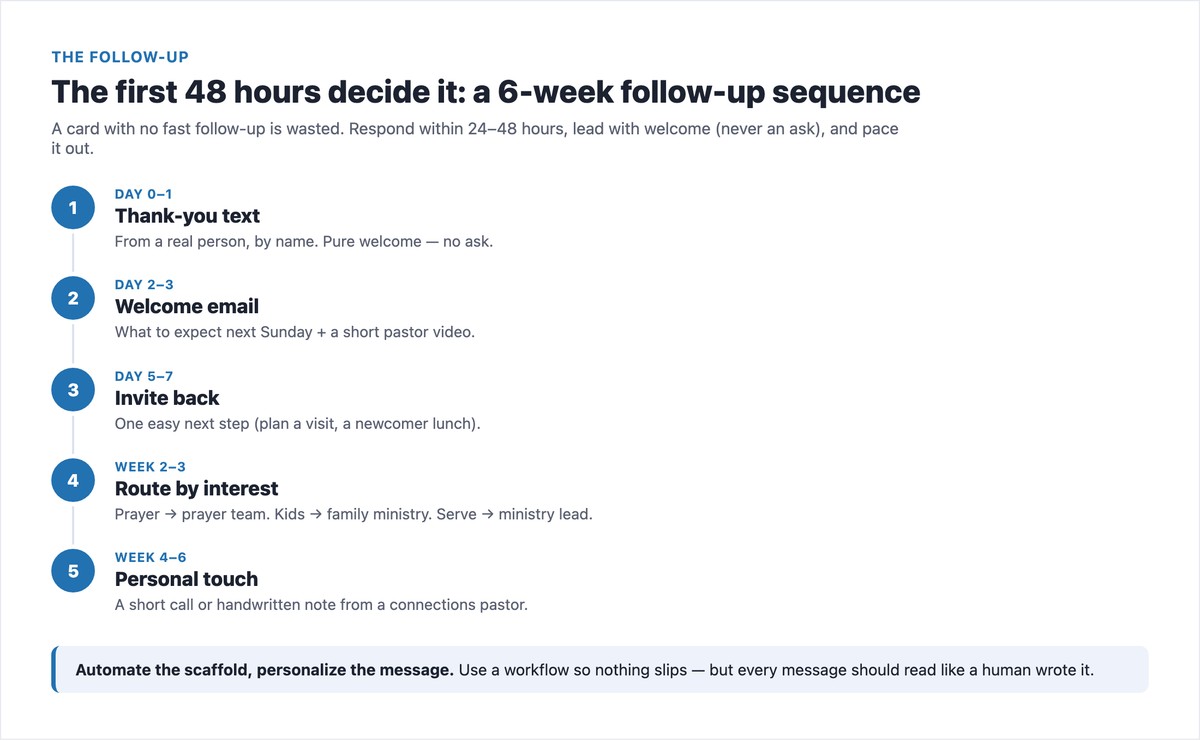
A few rules make the difference:
Pace it over about six weeks, two or three days apart, and save the bigger commitments (membership, baptism, giving) for weeks in, after they’ve come back. Prayer requests that come through the card should also flow into your prayer request process so nothing gets missed.
Get the card and the follow-up right and you’ve built one of the highest-leverage systems in your church. For the bigger picture, see our essential church website features and essential pages guides.
Keep it short — about five fields with no more than three required: name, a mobile number or email (require one), an “I’m new / returning / regular” status, an optional “I’d like to…” checkbox group (plan a visit, join a group, serve, meet a pastor), and an optional prayer request. You can add optional fields like preferred contact method or children’s ages, but resist the urge to collect a full profile on the first card.
As few as possible — aim for about five fields, with a maximum of three required. Completion rate drops with every additional box, so collect only what you need to follow up well: a name, one way to contact them, and a sense of who they are and what they need next. Everything else can wait until they’re engaged.
Not as a required field. Asking for a full home address up front is one of the biggest reasons guests abandon a connection card. If you want it, make it optional, or collect it later once someone has engaged — for example, when they sign up for a class or join a group. A mobile number is far more useful for fast follow-up anyway.
It depends on what you already use. If you have a church management system like Planning Center, Tithe.ly, or Breeze, use its built-in form so submissions land where your team works. For automated text-and-email follow-up, tools like Text In Church, Gloo, and Clearstream are built around connection cards and text keywords. If you’re starting simple, a form on your own website — or even Google Forms — works, as long as someone is watching the responses.
Fast and warm. Respond within 24–48 hours, ideally with a personal text or email from a real person — not a phone call or an ask. Lead with welcome and one easy next step, route the message based on what they checked (prayer, kids, serving), and pace further touches over about six weeks. Automate the workflow so nothing falls through, but keep every message human.
A digital card is an online form guests reach by scanning a QR code, tapping a link in your app or website, or texting a keyword to a short code (for example, “text CONNECT to 94000”). When they submit, their information lands instantly in your system, and — depending on the tool — can trigger an automatic welcome message. The texted-keyword method tends to have the highest completion because it meets people right in their text messages and captures their number automatically.

Church Website Features
Church Website Features
Church Website Features
10 complete church website templates, MIT licensed. Browse every demo freely; we will email you whichever folder you want.
All templates