How to Migrate a Church Website Without Losing Rankings
Switching your church website to a new platform — or redesigning it on the same one — is one of the few projects that can quietly erase years of search visibility overnight. Do it wrong and the page that used to rank for “[your town] church” 404s, the sermon URLs people bookmarked break, and your Google Business Profile sends map traffic to a dead link. Do it right and almost nobody notices the switch — your rankings, traffic, and giving links carry over intact.
The difference comes down to one discipline: preserving every URL, redirect, and on-page signal Google already trusts. This guide is the complete, technically rigorous version — the exact six-phase process, copy-paste 301-redirect code for Apache, nginx, and WordPress, how redirects work on each church platform, the mistakes that tank rankings, and what to expect afterward. There’s a free migration checklist and redirect-map template near the end.
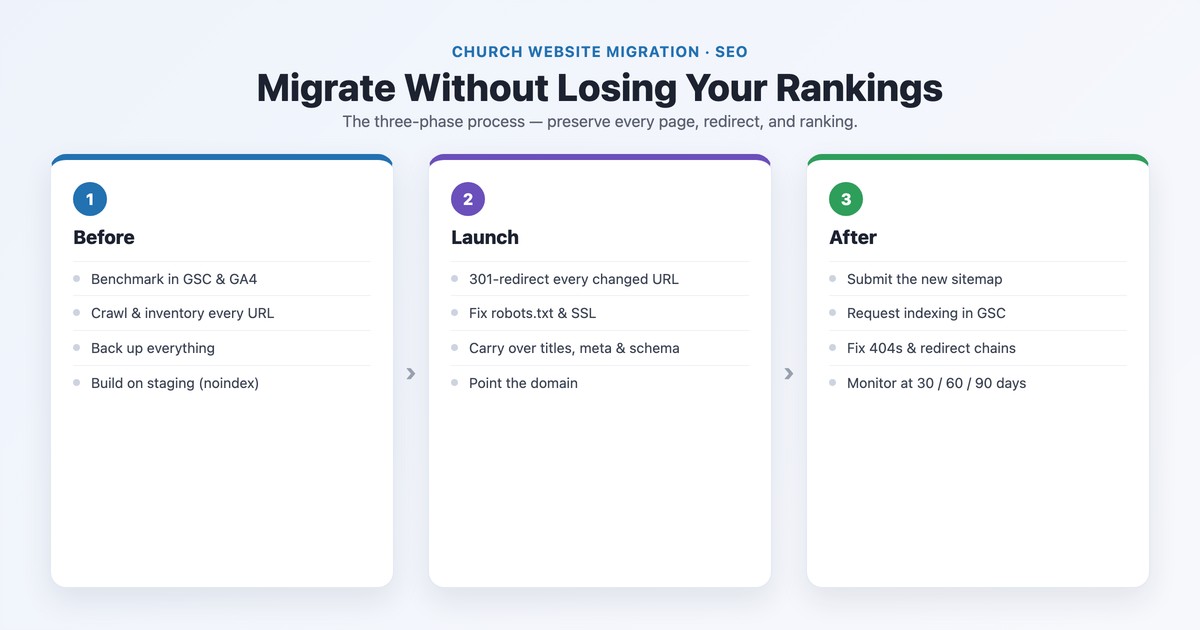
The short version — how to migrate without losing rankings:
-
Benchmark your current rankings and traffic, and crawl every URL, before you touch anything.
Keep your URLs identical wherever possible; build a 1:1 301 redirect map for every URL that must change.
Carry over your titles, meta descriptions, content, and schema — don’t drop pages or strip content.
Launch on the same domain, implement the 301s server-side, and remove any staging “noindex.”
Submit the new sitemap to Search Console, request indexing, and monitor for a few weeks.
Update your off-site links — Google Business Profile, bulletins, and QR codes.
In This Guide
Why Churches Lose Rankings When They Switch
Every page on your current site has an address (its URL), and Google has attached your rankings, and the “link equity” from every site that links to you, to those specific addresses. When you migrate or redesign, the new platform often creates different URLs. If the old address now leads nowhere, Google eventually drops it — and the ranking it carried goes with it. As OurChurch.com bluntly puts it, skip redirects and “you will lose all the search rankings of your old website” except, usually, the homepage.
For a church this isn’t abstract. The pages that earn the most search traffic and accumulate the most links are typically your sermon archive, blog posts, and “Plan Your Visit” page — and your giving page is bookmarked by regular donors. Break those URLs and you don’t just lose rankings; you lose visitors and donations. The good news: a careful migration preserves all of it. A redesign and a platform switch follow the same rules — if you’re redesigning, pair this with our church website redesign playbook.
The 6-Phase Migration Process
Phase 1 — Before you migrate: benchmark, inventory, back up
You can’t tell whether a migration succeeded — or diagnose a problem — without a “before” picture. First, benchmark performance: in Google Search Console export your last 16 months of Performance data (queries, pages, clicks, impressions, position) and the Page Indexing report; in GA4, note organic sessions and conversions for your top landing pages. Then crawl and inventory every URL with a tool like Screaming Frog, capturing each page’s title, meta description, H1, canonical, and status code. Cross-check against Search Console’s indexed pages so no legacy URL — an old sermon permalink, a 2019 event page — gets missed. Flag the pages with the most traffic and the most backlinks: those must redirect 1:1. Finally, back up everything (content, media, database) and keep the old site fully intact until recovery is confirmed, and build the new site on a password-protected, noindexed staging environment — never a public, crawlable dev URL.
Phase 2 — Plan the redirect map
This is the single most important step. The cleanest migration changes nothing: if a page keeps the same URL, there’s no redirect to set up and zero risk. So keep URLs identical wherever your new platform allows. For every URL that must change, build a 1:1 redirect map in a spreadsheet — old URL, new URL, notes — sending each old page to its single most relevant new page.
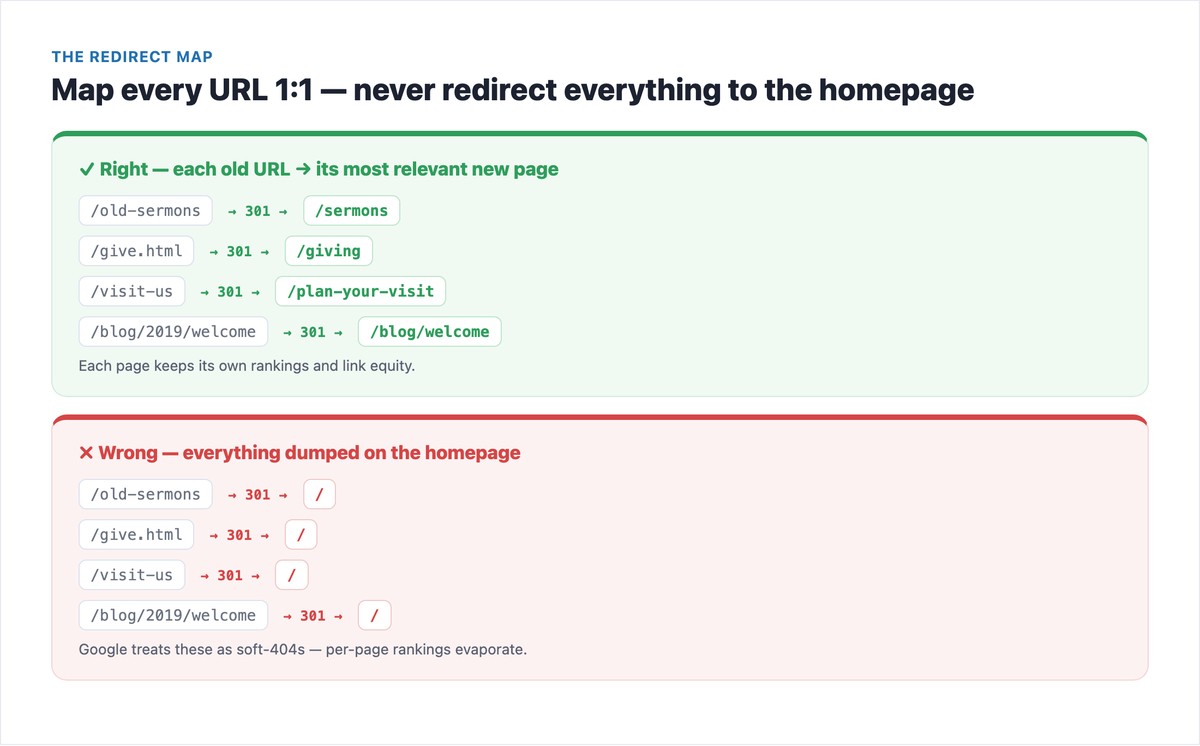
The cardinal sin is redirecting everything to the homepage. It feels efficient; it’s catastrophic. Google sees a dozen different pages all pointing at one unrelated destination and treats them as soft-404s, so the per-page rankings simply evaporate. Map each page to its real equivalent. If a page is genuinely retired with no successor, redirect it to the closest relevant page; reserve a 410 Gone only for content you’re permanently deleting.
Phase 3 — Preserve your on-page SEO
Redirects protect your URLs; this protects what’s on them. Carry over, page for page: title tags, meta descriptions, H1/H2 structure, the full body content (don’t replace an 800-word ranking page with a pretty hero image — rankings follow the content down), image alt text, internal links, and schema (your LocalBusiness/Church markup, Event markup for services, FAQ markup). Re-point internal links to the new URLs directly rather than relying on the redirects. And set a self-referencing canonical tag on every new page, making sure none still point at the old domain or your staging site.
Phase 4 — Launch
Launch on the same domain — keeping your domain avoids the biggest source of migration risk. Implement the 301s server-side (the next section has copy-paste code), and verify each one returns a single 301, not a 302 and not a chain. Then run the pre-flight checks that catch the disasters: confirm your robots.txt isn’t blocking the site and remove the staging “noindex” (a single leftover line can deindex your entire site), confirm valid SSL and force HTTPS, and point your DNS to the new platform. Lowering your domain’s DNS TTL a day before launch makes the cutover faster.
Phase 5 — After launch (first 48 hours → weeks)
The moment you’re live, submit the new XML sitemap in Search Console (Indexing → Sitemaps), and keep the old sitemap submitted briefly so Google discovers your redirects. Use URL Inspection → Request Indexing on the homepage and your top 10–20 pages to speed up recrawling. File a Change of Address in Search Console only if you actually changed domains (not for a same-domain platform swap or an HTTP→HTTPS move). Then re-crawl the new site with Screaming Frog to catch broken links, 404s, redirect chains, and missing titles or canonicals. Monitor Search Console coverage, rankings, and 404 reports daily for two weeks, then at 30/60/90 days.
Phase 6 — The church off-site sweep
Here’s the step generic SEO guides miss entirely, and it matters more for churches than almost anyone. Your URLs live in places you don’t control through redirects:
- Your Google Business Profile — update the website link the moment you cut over, or your map-pack traffic lands on a 404. (See our Google Business Profile guide.)
- Bulletins and email footers — the weekly links your congregation actually clicks.
- Social bios — Facebook, Instagram, and your YouTube channel “About” tab.
- Printed QR codes and any app or ProPresenter links pointing at specific pages.
One more church-specific rule: migrate in the off-season. Don’t launch the week before Christmas or Easter, or during the September back-to-church surge — a temporary dip during your highest-traffic, highest-giving window is the one risk you can simply schedule around.
301 Redirects Explained (With Copy-Paste Code)
A 301 redirect is a permanent move: it tells Google to transfer the old URL’s ranking signals to the new URL and to swap the indexed address. A 302 is temporary: Google keeps the old URL indexed and is slower and less reliable about passing equity. For a migration you want 301s everywhere. Google has confirmed permanent redirects don’t cause a ranking loss — a single clean 301 passes essentially all of a page’s link equity. The damage comes from the wrong type (302 or a JavaScript redirect), from redirect chains (A→B→C bleeds equity and wastes crawl budget — always redirect straight to the final URL), and from sending pages somewhere irrelevant.
Here’s your redirect map as code. Replace the example paths with your own.
Apache (.htaccess)
# Single-page 301s (mod_alias)
Redirect 301 /old-sermons /sermons
Redirect 301 /give.html /giving
Redirect 301 /visit-us /plan-your-visit

# Whole-folder move, keeping the path (mod_rewrite)
RewriteEngine On
RewriteRule ^old-blog/(.*)$ /blog/$1 [R=301,L]

# Force HTTPS + non-www, site-wide
RewriteCond %{HTTPS} off [OR]
RewriteCond %{HTTP_HOST} ^www\.(.*)$ [NC]
RewriteRule ^ https://%1%{REQUEST_URI} [R=301,L]
nginx
server {
    listen 443 ssl;
    server_name yourchurch.org;

    # Exact 1:1 redirects
    location = /old-sermons { return 301 /sermons; }
    location = /give.html   { return 301 /giving; }
    location = /visit-us    { return 301 /plan-your-visit; }

    # Whole-folder move, keeping the path
    location /old-blog/ { return 301 /blog$request_uri; }
}

# Force HTTPS + canonical host
server {
    listen 80;
    server_name yourchurch.org www.yourchurch.org;
    return 301 https://yourchurch.org$request_uri;
}
WordPress
The volunteer-friendly route: install the free Redirection plugin (Tools → Redirection) or Yoast SEO Premium, and add each rule as Source /old-url → Target /new-url, type 301. You can import your whole redirect-map spreadsheet as a CSV, and Yoast will auto-create a 301 whenever you change a published page’s slug. For a bulk programmatic map, drop this in a small plugin:
add_action( 'template_redirect', function () {
    $map = [
        '/old-sermons' => '/sermons/',
        '/give.html'   => '/giving/',
        '/visit-us'    => '/plan-your-visit/',
    ];
    $path = untrailingslashit( parse_url( $_SERVER['REQUEST_URI'], PHP_URL_PATH ) );
    if ( isset( $map[ $path ] ) ) {
        wp_redirect( home_url( $map[ $path ] ), 301 );
        exit;
    }
} );
Here’s how a few rows of a finished church redirect map look — this is exactly the format in the downloadable template below.
| Old URL | New URL | Type | Notes |
|---|---|---|---|
| /old-sermons | /sermons | 301 | Highest-equity pages — verify first |
| /give.html | /giving | 301 | Bookmarked by regular givers |
| /visit-us | /plan-your-visit | 301 | Shared with first-time guests |
| /old-blog/(.*) | /blog/$1 | 301 | Pattern redirect for a whole folder |
Redirects by Platform
How easy your 301s are depends heavily on where you’re going. Here’s the reality on the platforms churches use most.
| Platform | How redirects work | Ease |
|---|---|---|
| WordPress (self-hosted) | Edit .htaccess/nginx directly, or use the free Redirection plugin / Yoast. Full control of canonicals, robots.txt, and sitemaps. | Easy |
| Squarespace | Settings → Advanced → URL Mappings (one /old -> /new 301 rule per line). Caps around 2,500 rules; only blog posts & basic pages export. See our Squarespace redirects guide. | Moderate |
| Wix | URL Redirect Manager (max ~5,000 rules; can’t redirect the homepage; no .htaccess). Wix has no real export, so leaving Wix means a full rebuild. | Hard |
| Vendor builders (Subsplash, Tithe.ly, Sharefaith) | Redirects & DNS are handled by the vendor’s support team. Explicitly request a 1:1 redirect map and confirm your sermon/give/visit URLs — or they’ll default to a homepage redirect. | Vendor-dependent |
The rule of thumb: 301s are easy on self-hosted WordPress, workable but capped on Squarespace, constrained on Wix, and only as good as your support ticket on managed church platforms. On Wix and vendor builders especially, lock down the redirect map and your Google Business Profile link manually before you cut over. Choosing where to go? See our best church website builders guide.
Mistakes That Tank Rankings
Nearly every migration horror story traces back to one of these. Avoid them and you’ve avoided 95% of the risk.
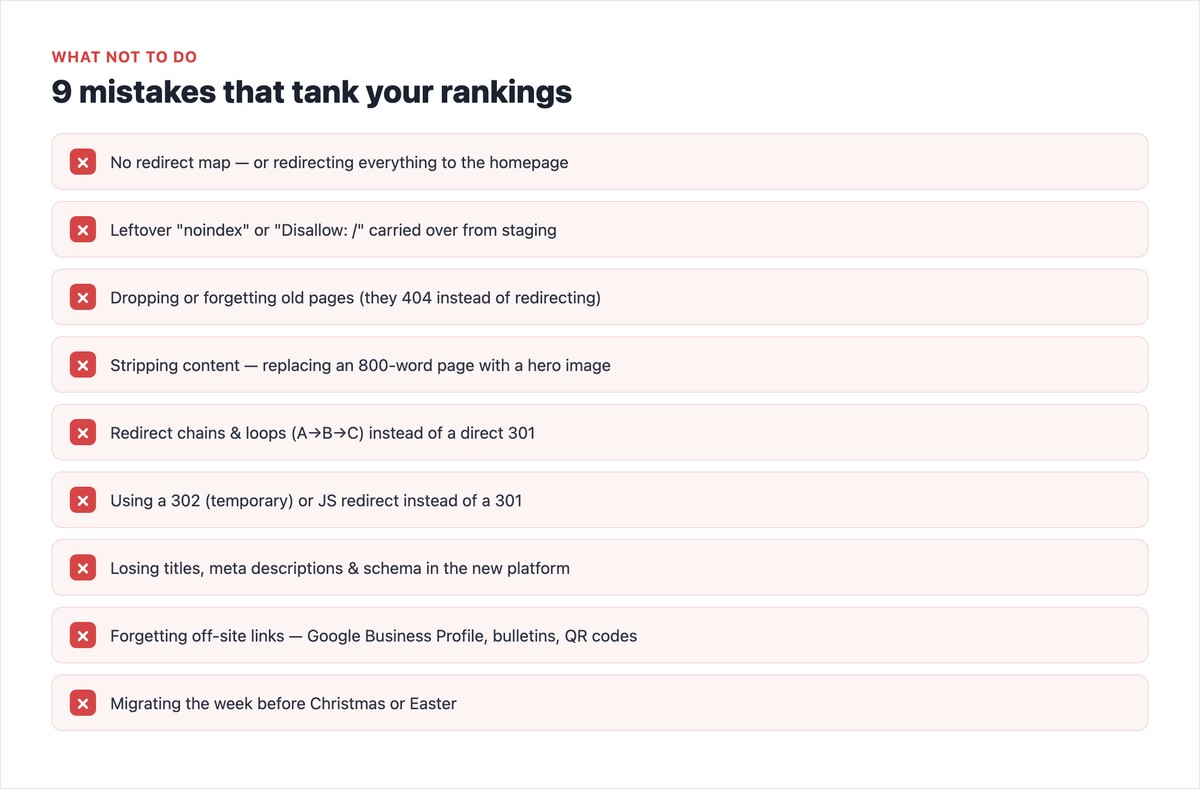
The two that do the most damage are also the most common: no redirect map (or dumping everything on the homepage), and a leftover “noindex” carried over from your staging site, which can deindex everything you just built. Both are completely avoidable with the checklist below.
What to Expect After Launch
Even a textbook migration usually sees a brief ranking wobble while Google recrawls and re-attributes everything. This is normal — don’t panic and revert. With a clean redirect map, here’s the typical timeline.
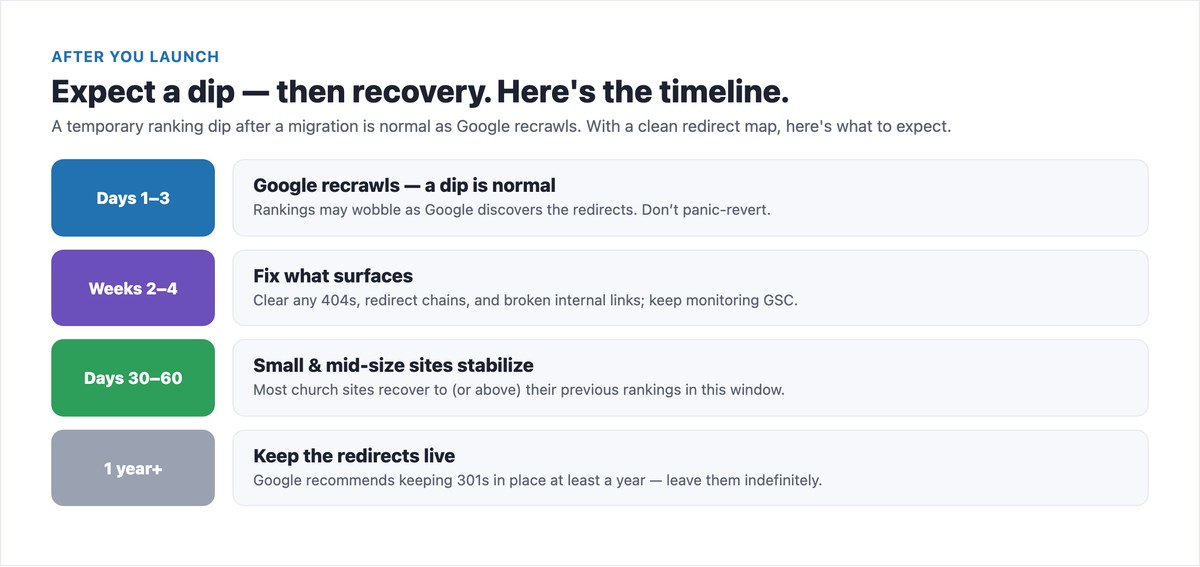
Google’s own guidance is that most small and medium sites recover within a few weeks, with larger sites taking longer — and that you should keep your redirects live for at least a year (in practice, leave them forever). If rankings haven’t recovered after about 60 days, that’s your signal to audit: re-crawl for 404s and redirect chains, confirm there’s no stray noindex, and check that titles, content, and schema actually carried over. For the broader ranking picture, our church website SEO guide covers what to strengthen once you’re stable.
Free Checklist + Redirect-Map Template
Free download: Grab the Church Website Migration Checklist + 301 Redirect-Map Template (PDF) — the full six-phase checklist on page one and a redirect-map template, pre-filled with the church pages that matter most, on page two. Print it, work it phase by phase, and nothing slips.
Frequently Asked Questions
Do 301 redirects hurt SEO or lose ranking?
No — a properly implemented 301 redirect preserves your rankings. Google has confirmed that permanent (301/308) redirects don’t cause a ranking or PageRank loss, and a single clean 301 passes essentially all of a page’s link equity to the new URL. Ranking loss in a migration comes from not redirecting, from using temporary 302s, from redirect chains, or from sending pages to an irrelevant destination like the homepage — not from 301s themselves.
How long does it take to recover rankings after a migration?
Expect a temporary dip while Google recrawls. Per Google’s guidance, most small and medium sites — which includes nearly every church — stabilize within a few weeks, often 30 to 60 days, with larger sites taking longer. A clean redirect map and a same-domain move keep the dip small. If you haven’t recovered after about 60 days, audit for 404s, redirect chains, a leftover noindex, and missing titles or content.
What’s the difference between a 301 and a 302 redirect?
A 301 is a permanent redirect — it tells search engines the move is permanent, transfers ranking signals to the new URL, and updates the indexed address. A 302 is temporary — search engines keep the old URL indexed and are slower and less consistent about passing equity. For a website migration you almost always want 301s. Only use a 302 when you genuinely intend to bring the original URL back.
Will redesigning my church website hurt my Google ranking?
It doesn’t have to. A redesign only hurts rankings if it changes URLs without redirects, drops or strips content, loses your titles and schema, or accidentally blocks the site from search engines. If you keep your URLs (or 301-redirect the ones that change), carry over your content and on-page SEO, and keep the site indexable, a redesign is safe — and often improves rankings through better speed and mobile experience.
Should I change my domain when I migrate?
No, unless you have a compelling reason (like a church name change). Keeping the same domain removes the single biggest source of migration risk. If you must change domains, do it as its own step — 301-redirect every old URL to its match on the new domain and file a Change of Address in Search Console — and don’t combine it with a redesign at the same time. Change one major thing at a time.
How do I set up 301 redirects on Squarespace or Wix?
On Squarespace, go to Settings → Advanced → URL Mappings and add one rule per line in the format /old-url -> /new-url 301. On Wix, use the URL Redirect Manager in your dashboard (note its limits: it caps around 5,000 redirects, can’t redirect the homepage, and offers no server-file access). Both are more limited than self-hosted WordPress, where you can edit .htaccess directly or use the free Redirection plugin — so on Squarespace and Wix, build your redirect map carefully before you launch.