Church Website Features
Your church probably has more going on than Sunday morning — youth group, small groups, volunteer nights, potlucks, mission trips, seasonal events. But if none of that shows up on your website, visitors have no idea it exists. A well-maintained event calendar is one of the most practical things you can add to your church website.
The problem? Most church calendars are either empty, outdated, or so cluttered that nobody can find what matters. This guide covers the best calendar options by platform, what events to include, and how to keep your calendar actually useful.
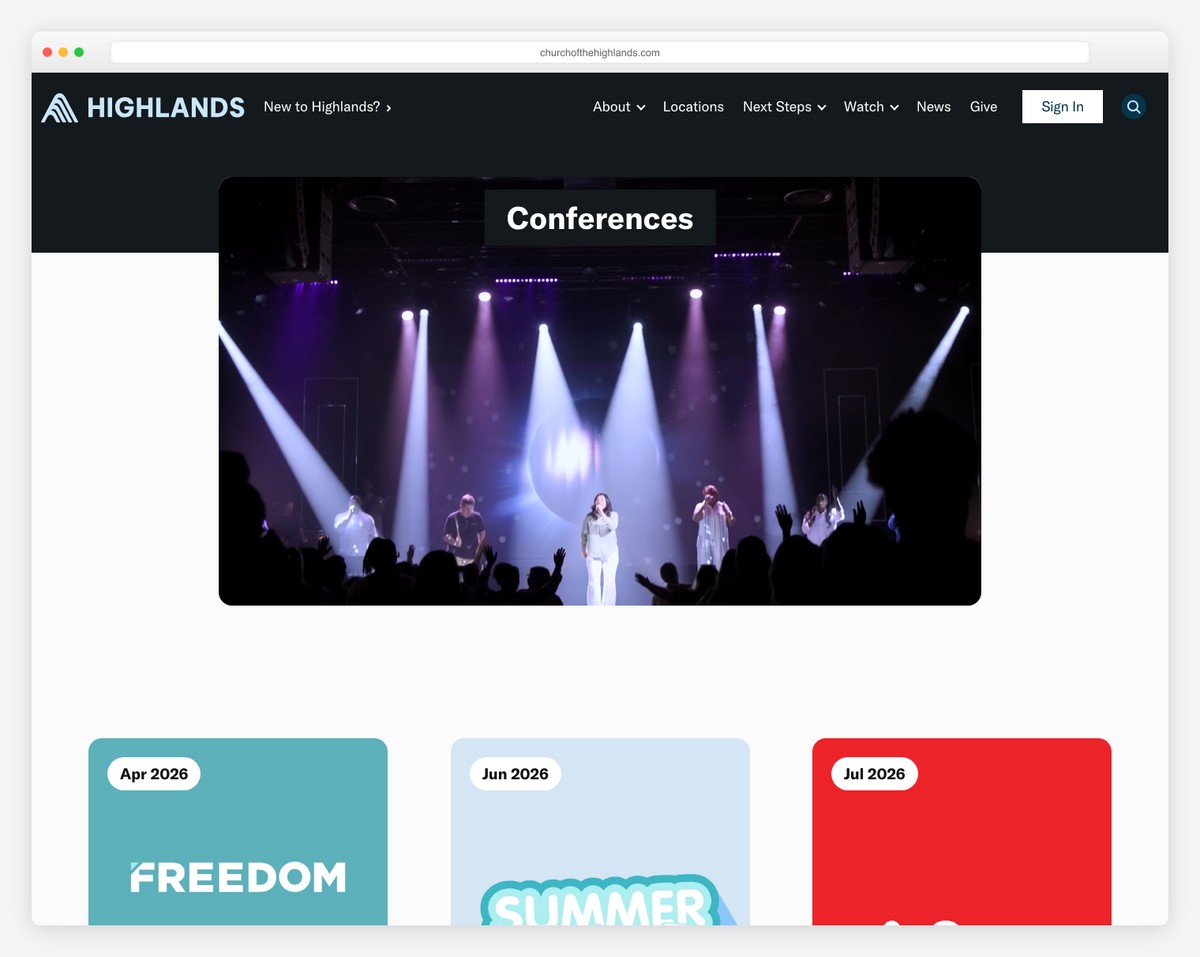
A church event calendar serves two very different audiences. First-time visitors use it to understand what your church offers beyond Sunday worship. They want to see that you have a community life — not just a service. Existing members use it to stay informed about upcoming events, registration deadlines, and schedule changes.
Without a calendar, your staff spends the week answering the same questions: “When is VBS?” “What time is men’s group?” “Is there childcare at the women’s event?” A well-maintained calendar eliminates those repetitive communications and lets your team focus on ministry.
From an SEO perspective, event pages with specific dates, locations, and descriptions create fresh, indexable content that can help your church appear in local search results. Someone searching “church events near me this weekend” might land directly on your calendar.
The right calendar tool depends entirely on what website builder you’re using. Here’s what works best on each platform.
Squarespace has a native events feature built into every plan. You create events just like blog posts — add a title, date, time, location, description, and featured image. Events display in a clean list or calendar grid layout that matches your site’s design automatically.
Strengths: Zero additional cost, beautiful design, automatic mobile responsiveness, built-in RSVP collection, events integrate with your site’s search and navigation. You can also add categories or tags to filter events by ministry (youth, women, missions).
Weaknesses: No recurring event support (you must create each occurrence individually), no ticketing, no registration forms beyond basic RSVP. For most churches, the simplicity is actually a benefit — but if you run complex multi-day events with registration tiers, you’ll outgrow it.
For a deeper look at the platform, see our Squarespace for churches guide.
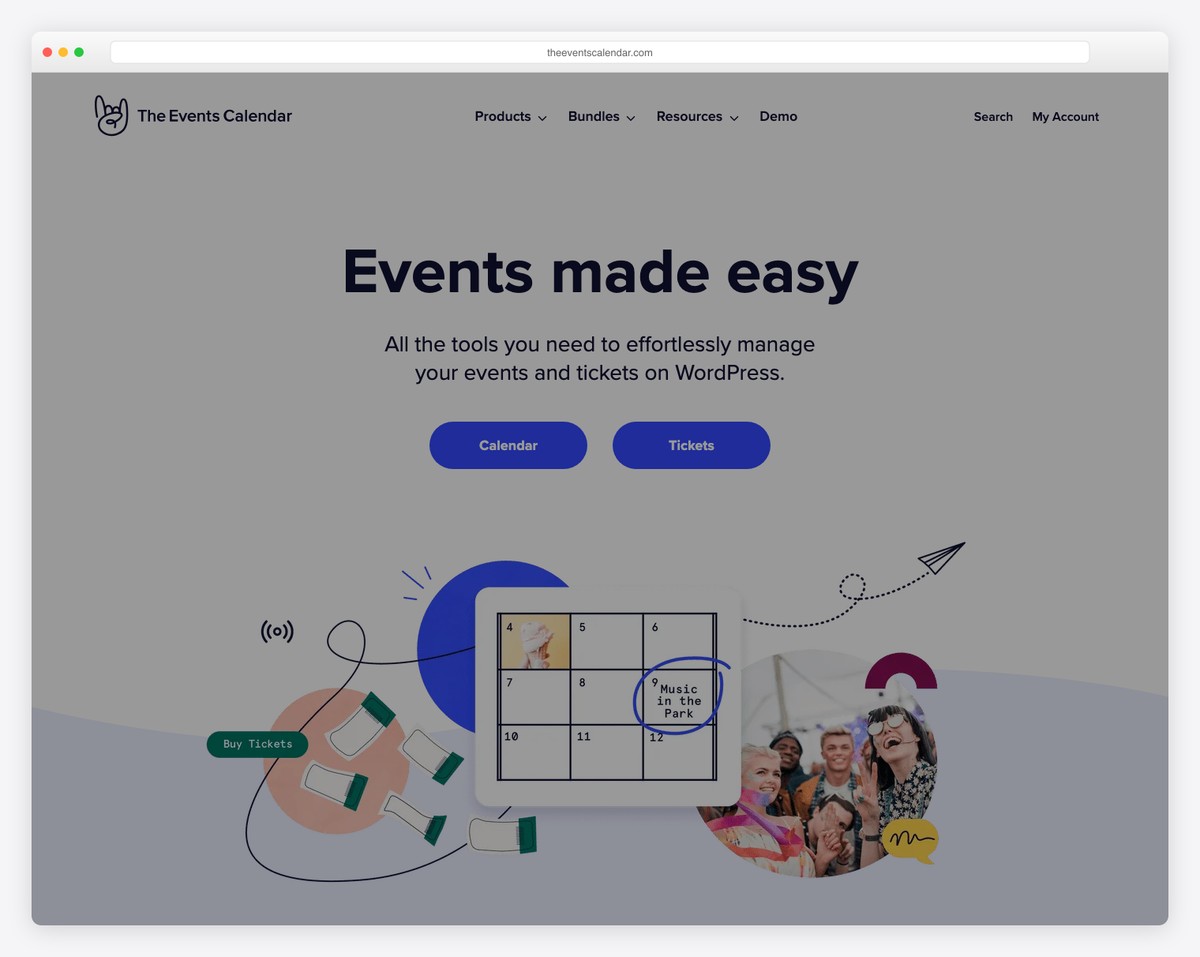
If your church runs on WordPress, The Events Calendar by StellarWP is the go-to solution. The free version handles most church needs: create events with dates, times, venues, organizers, and descriptions. Events display in list, month, or day view.
The free version includes recurring events, venue management, Google Maps integration, and iCal export. The Pro version ($99/year) adds advanced recurring event patterns, custom fields, shortcodes, and additional views.
Alternative WordPress plugins worth considering:
Tithe.ly Sites includes event management as part of its church-specific platform. Events are created in the Tithe.ly dashboard and automatically display on your website. The integration with Tithe.ly’s broader ecosystem means events can connect to registration, check-in, and communication tools.
The calendar syncs across your website, church app, and Tithe.ly admin — so you enter event details once and they appear everywhere. This is a major time-saver for churches already in the Tithe.ly ecosystem.
The quick-and-free option that works on any website: embed a public Google Calendar using an iframe. Your staff manages events in Google Calendar (which many churches already use), and the website displays them automatically.
How to set it up:
The downside: embedded Google Calendars look like Google, not like your church website. The styling is limited, mobile responsiveness is mediocre, and the design can feel out of place on a polished site. It works as a starting point but isn’t a long-term solution for churches that care about their online presence.
If you’re on Wix, the Wix Events app (free with your plan) handles event creation, RSVP collection, and even ticketing (paid tickets carry a 2.5% Wix service fee; free tickets don’t). Events display in a grid or list format on your site. You can collect registration information through custom forms and send automatic confirmation emails.
Wix Events also supports recurring events and waitlists — features that some more expensive platforms don’t include for free.
Not everything belongs on your public website calendar. Internal staff meetings, deacon board meetings, and facility reservations should stay on internal calendars. Your public calendar should include events that visitors and members would actually attend or need to know about.
Having a calendar is step one. Making it useful is step two. These best practices keep your calendar from becoming another neglected corner of your website.
Your default calendar view should show upcoming events, not past ones. A visitor landing on your events page and seeing last month’s potluck as the first item sends the message that nobody is maintaining this site. Most calendar tools let you set the default view to show only future events.
Every event listing should answer these questions at minimum:
Incomplete event listings create confusion and generate unnecessary phone calls and emails to your church office.
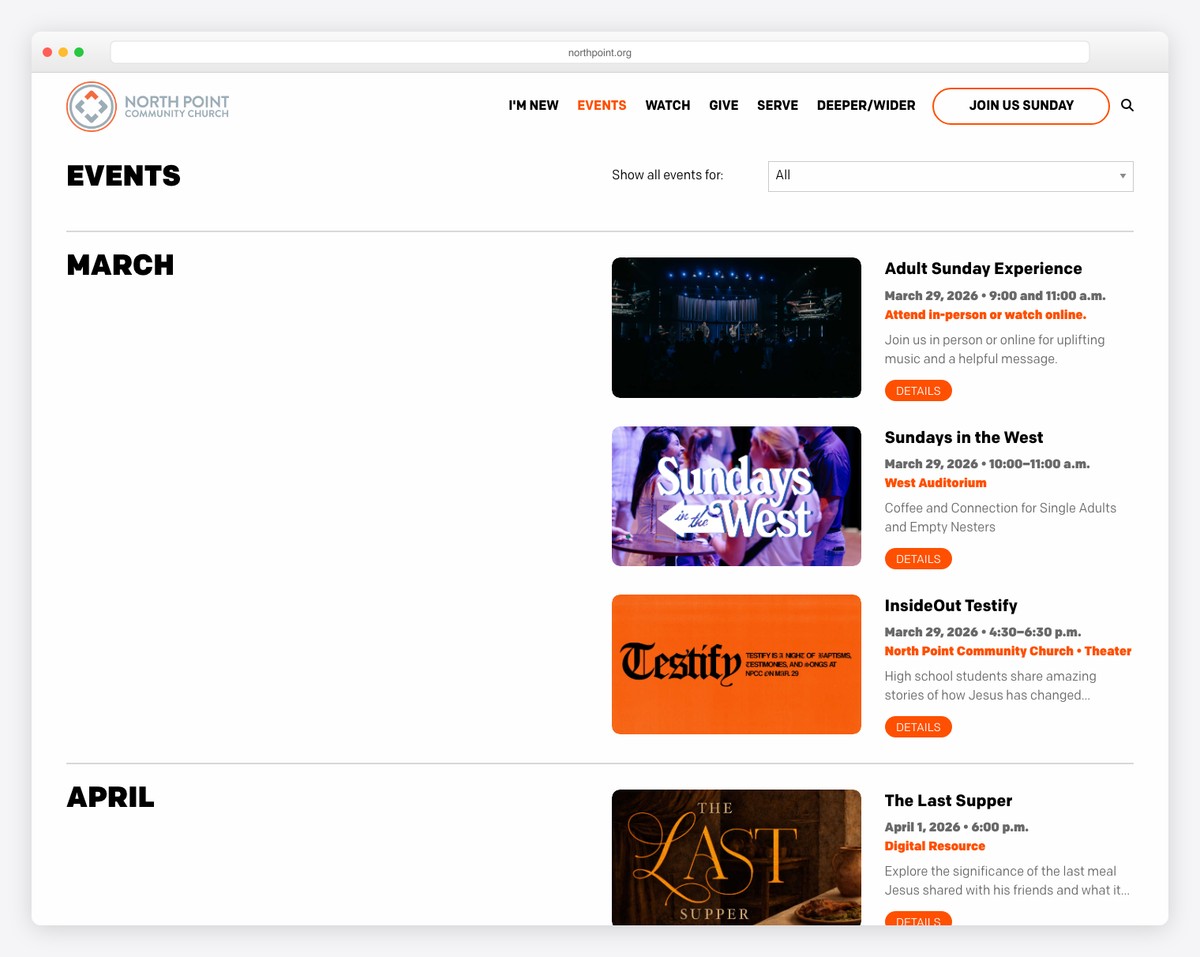
Use categories or tags to let visitors filter events by ministry area. Common categories include: Worship, Youth, Children, Women, Men, Missions, Community, and Classes. A parent looking for kids’ activities shouldn’t have to scroll through every event to find what’s relevant.
Your homepage should highlight your next 2-3 upcoming events or your single biggest upcoming event. Don’t bury everything behind a calendar page link. A “What’s Coming Up” section on the homepage drives more engagement than a standalone calendar page that visitors have to find in your navigation.
Not every event needs registration. Weekly services and small groups usually don’t. But events with limited capacity, meal planning, childcare coordination, or material preparation benefit from knowing who’s coming. Use your calendar tool’s built-in registration or link to a simple Google Form.
This is the most important best practice on this list. Without a single person responsible for keeping the calendar current, it will become outdated within weeks. This person doesn’t need to create every event — they need to ensure that ministry leaders submit their events and that past events get cleaned up.
Set a simple process: ministry leaders email event details to the calendar owner by a weekly deadline (say, Wednesday). The calendar owner adds them by Friday. Done.
A cluttered calendar is almost worse than no calendar. If your church has dozens of events per week, consider showing only featured or public events on the website and directing members to a church app or internal tool for the complete schedule. Your website calendar should feel curated, not overwhelming.
Here’s a quick setup guide regardless of your platform:
The whole setup takes about an hour on most platforms. The ongoing maintenance — maybe 15 minutes per week if someone stays on top of it.
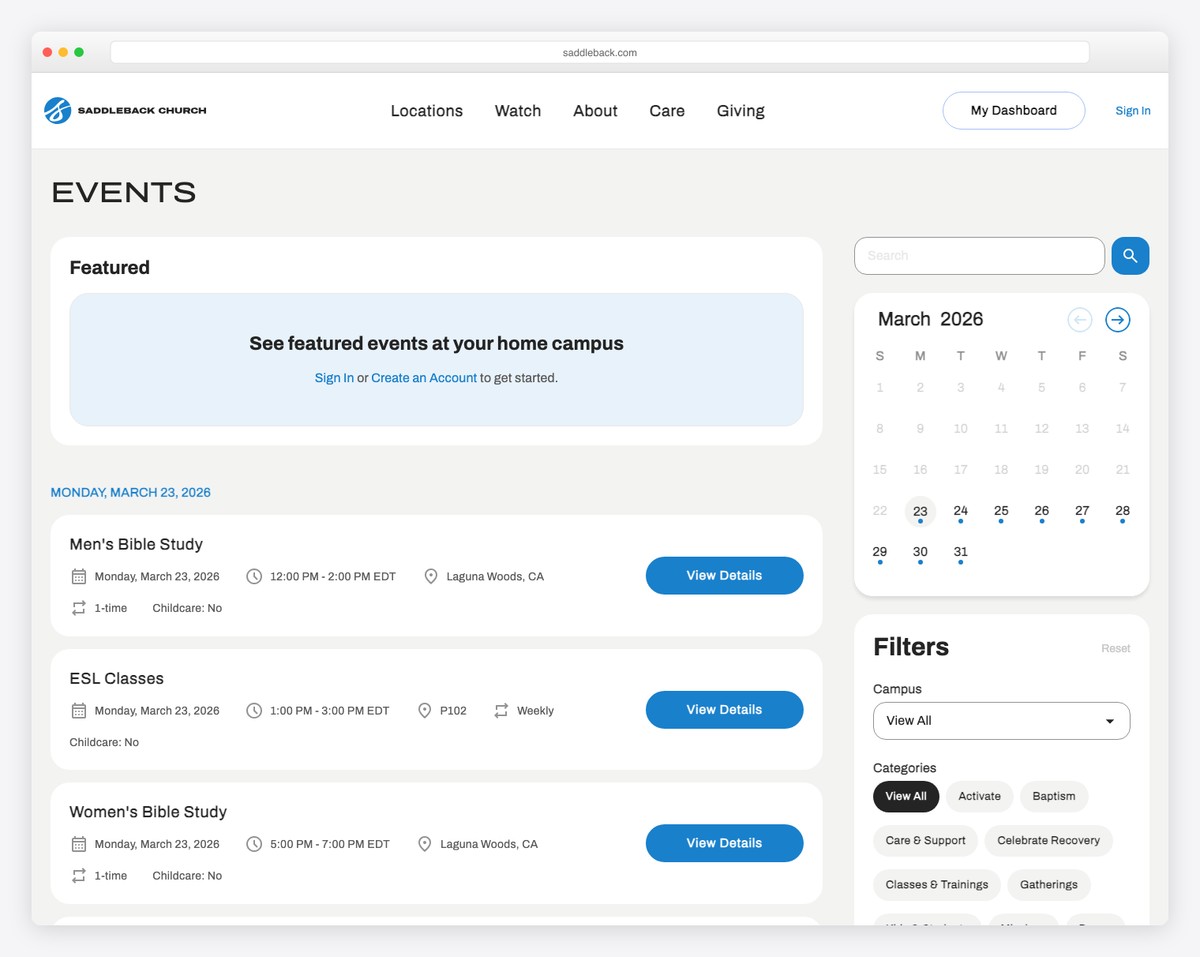
List view is better as the default for most church websites. It shows upcoming events in chronological order with descriptions visible — visitors can quickly scan what’s coming up. Calendar grid view works as a secondary option for people who want to see the full month. If your platform supports both, offer a toggle and default to list.
Post events at least 2-4 weeks in advance. Major events like VBS, retreats, or holiday services should go up 6-8 weeks ahead to allow planning time. There’s no harm in posting further out, but make sure the details are confirmed before publishing. A placeholder event with “TBD” for the time and location isn’t helpful.
Yes, if you use Planning Center for church management, its calendar can be embedded or synced with most website platforms. The Church Center app also provides event management that can complement your website calendar. Some churches use Planning Center as the source of truth and display events on their website via embed or API integration.
Both. Feature your top 2-3 upcoming events on the homepage to catch attention, and maintain a dedicated events page with the full calendar for people who want to see everything. The homepage section should link to the full events page.
That’s completely fine — a small church with three events per month still benefits from a calendar. Even listing your weekly services and one monthly event shows visitors that your church is active and welcoming. A small, well-maintained calendar is better than a large, neglected one.

Church Website Features
Church Website Features
Church Website Features
10 complete church website templates, MIT licensed. Browse every demo freely; we will email you whichever folder you want.
All templates