Church Website Features
Church websites handle sensitive information — donor credit card details, member contact data, prayer requests, and sometimes even children’s check-in records. Yet most churches give almost no thought to website security. The attitude is often “Why would anyone hack a church?” — and the answer is: because hackers don’t care that you’re a church. Automated bots attack every vulnerable website they can find, and churches make easy targets because they rarely update their software or use strong passwords.
The good news is that church website security isn’t complicated. Most of the important steps are simple, free, and take less than an hour to implement. This guide covers what you need to know based on your platform, how to protect yourself, and what to do if the worst happens.
The single biggest factor in your website’s security is your platform choice. Not all platforms carry the same risk.
Platforms like Squarespace, Wix, Tithe.ly, and Subsplash are managed platforms. This means the company handles server security, software updates, SSL certificates, malware scanning, and backups for you. You can’t install random plugins, and the attack surface is much smaller.
On a managed platform, your security responsibilities are limited to:
That’s it. The platform handles everything else. This is one of the biggest advantages of using a managed platform for your church website — security is essentially built in.
WordPress powers roughly 40% of all websites, which makes it the #1 target for automated attacks. WordPress itself is secure when kept updated, but the combination of outdated plugins, weak passwords, and cheap hosting creates vulnerabilities that bots exploit constantly.
If you’re on WordPress, you need to take security seriously. The good news is that the steps aren’t complicated — they just require consistency. We cover them in detail below.
⚠️ Important: If your WordPress site hasn’t been updated in 6+ months, it may already be compromised. Outdated WordPress sites are the #1 way church websites get hacked. If this describes your site, update everything immediately or contact a professional before proceeding.
Whether you’re on Squarespace, WordPress, Wix, or any other platform, these four practices are your first line of defense.
This is the most basic security measure and the one most often ignored. The password “church2024” is not a strong password. Neither is the pastor’s birthday, the church name, or “password123.”
A strong password is:
Every person with access to your website should use a strong, unique password. If someone leaves your church staff, change the password immediately — or better yet, delete their individual account.
Two-factor authentication adds a second step after entering your password — usually a code from an app on your phone (Google Authenticator, Authy) or a text message. Even if someone steals your password, they can’t log in without the second factor.
Every major platform supports 2FA:
Enable 2FA for every admin account. It takes 5 seconds to use and prevents the vast majority of account takeovers.
The more people who have admin access to your website, the more potential entry points for attackers. Follow the principle of least privilege: give people only the access level they need.
Audit your user list every six months. Remove accounts for people who no longer need access. Every dormant admin account is a potential vulnerability.
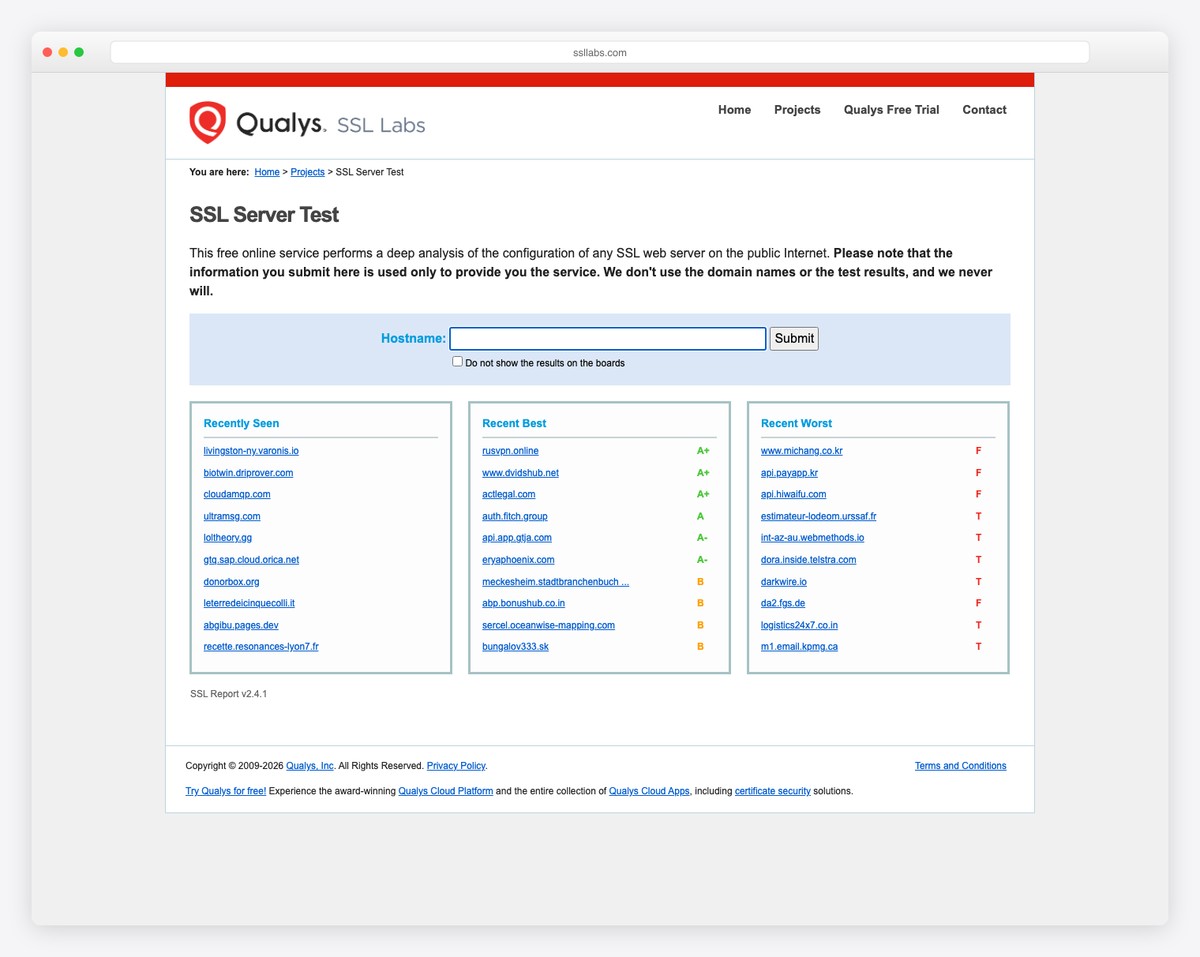
An SSL certificate encrypts the connection between your visitors’ browsers and your website. It’s what puts the padlock icon in the browser address bar and changes your URL from http:// to https://.
Without SSL, data transmitted between your site and visitors (including login credentials and giving information) can be intercepted. Google also penalizes non-HTTPS sites in search rankings.
The good news: SSL is free and automatic on virtually every modern platform. Squarespace, Wix, Tithe.ly, and Subsplash all include SSL automatically. WordPress hosts like SiteGround, Bluehost, and WP Engine include free SSL through Let’s Encrypt. If your site still shows “http://” in the address bar, contact your hosting provider — this should have been fixed years ago.
If your church uses WordPress, these additional measures are essential. WordPress’s flexibility is its strength and its vulnerability — more plugins and customization mean more potential attack vectors.
This is the #1 WordPress security practice, and it’s not negotiable. Outdated WordPress core, themes, and plugins are the primary way hackers get in. Security patches are released regularly, and every unpatched vulnerability is an open door.
What to update and how often:
Set a weekly calendar reminder: “Update WordPress.” It takes 5 minutes and prevents the most common attacks.
A WordPress security plugin adds firewall protection, malware scanning, and login security. You don’t need to understand the technical details — just install one and let it work.
Recommended options:
Pick one. Don’t install multiple security plugins — they can conflict with each other.
Backups won’t prevent an attack, but they’re your safety net if one happens. With a recent backup, you can restore your site to a clean state within hours instead of rebuilding from scratch.
Set up automated daily backups stored off-site (not on the same server as your website). Options:
A backup you’ve never tested is a backup you can’t trust. Once a quarter, do a test restore to make sure it actually works.
By default, WordPress allows unlimited login attempts — meaning a bot can try millions of password combinations. Install a plugin that limits login attempts to 3-5 before locking the account temporarily. Both Wordfence and iThemes Security include this feature. This single measure blocks the vast majority of brute-force attacks.
Every plugin on your WordPress site — even deactivated ones — is potential attack surface. If you’re not using it, delete it. Not deactivate — delete. The same goes for themes. Keep your active theme, one default WordPress theme as a fallback, and nothing else.
While you’re at it, audit your active plugins. Do you really need 25 plugins? Many churches accumulate plugins over the years that are no longer used or duplicated. Fewer plugins means fewer updates, fewer vulnerabilities, and a faster website.
Your hosting provider is the foundation of your site’s security. A cheap $3/month shared hosting plan might save money, but it often means shared server resources with hundreds of other sites, minimal security monitoring, and slow support when something goes wrong.
For WordPress churches, we recommend managed WordPress hosting from providers like SiteGround, Flywheel, or WP Engine. They include automatic updates, daily backups, staging environments, and proactive security monitoring. The extra $10-20/month is worth it for peace of mind. For a full platform comparison, see our church website builder guide.
If your church website has been compromised, don’t panic — but act quickly. Follow these eight steps in order:
If you’re not comfortable handling this yourself, services like Sucuri ($199/year) and Wordfence ($119/year) offer hack cleanup as part of their premium plans. It’s money well spent for peace of mind.
If your church accepts online donations, you have a responsibility to protect donor financial information. The Payment Card Industry Data Security Standard (PCI DSS) sets the rules for how credit card data must be handled.
The good news for most churches: you probably don’t need to worry about PCI compliance directly. Here’s why:
If you use a third-party giving platform — Tithe.ly, Pushpay, Planning Center Giving, Subsplash Giving, or even Stripe/PayPal — the payment processor handles all credit card data. Your website never sees, stores, or transmits card numbers. The giving platform is PCI compliant, and as long as you’re using them correctly (embedding their giving form or redirecting to their page), you’re covered.
What you should NOT do:
Beyond credit cards, protect the personal data you do collect — names, emails, addresses, phone numbers from connection cards and forms. Store this in your church management system (Planning Center, Breeze, etc.), not in random spreadsheets. Limit who has access to this data, and don’t email it around unencrypted.
Hackers rarely target churches specifically. Automated bots scan the entire internet for vulnerable websites — outdated WordPress installations, weak passwords, unpatched plugins. They don’t check what the website is about. Once in, they use your site to send spam emails, host phishing pages, distribute malware to your visitors, or inject SEO spam (links to gambling or pharmaceutical sites). Your church website becomes an unwitting tool for someone else’s scam.
In practice, yes — because Squarespace handles all security updates, patching, and server hardening automatically. WordPress can be just as secure, but it requires active maintenance (updates, security plugins, good hosting). Most church WordPress sites are poorly maintained, making them significantly more vulnerable. If security is a major concern and you don’t have someone dedicated to WordPress maintenance, a managed platform like Squarespace eliminates most of the risk.
Common signs include: your site redirects to a different website, Google shows a “This site may be hacked” warning, you find pages or posts you didn’t create (often with spammy content), your hosting provider contacts you about malicious activity, visitors report security warnings in their browsers, or your email is suddenly being flagged as spam. Install a security plugin with monitoring (Wordfence or Sucuri) and you’ll be alerted automatically.
For most small to mid-size churches, general liability insurance with a cyber rider is sufficient. If your church handles significant online transactions or stores member data (health information, financial records), consider a dedicated cyber insurance policy. Talk to your insurance provider about your specific needs — many church insurance providers now offer cyber coverage as an add-on.
On a managed platform (Squarespace, Tithe.ly, Wix): $0 beyond what you already pay for the platform. On WordPress: a good hosting provider ($15-35/month), a security plugin (free tiers are sufficient), and a backup plugin (free). Total WordPress security cost: $0-30/month on top of hosting you should already have. The real cost is time — 15 minutes per week to apply updates and monitor security alerts.

Church Website Features
Church Website Features
Church Website Features
10 complete church website templates, MIT licensed. Browse every demo freely; we will email you whichever folder you want.
All templates