Church Website Features
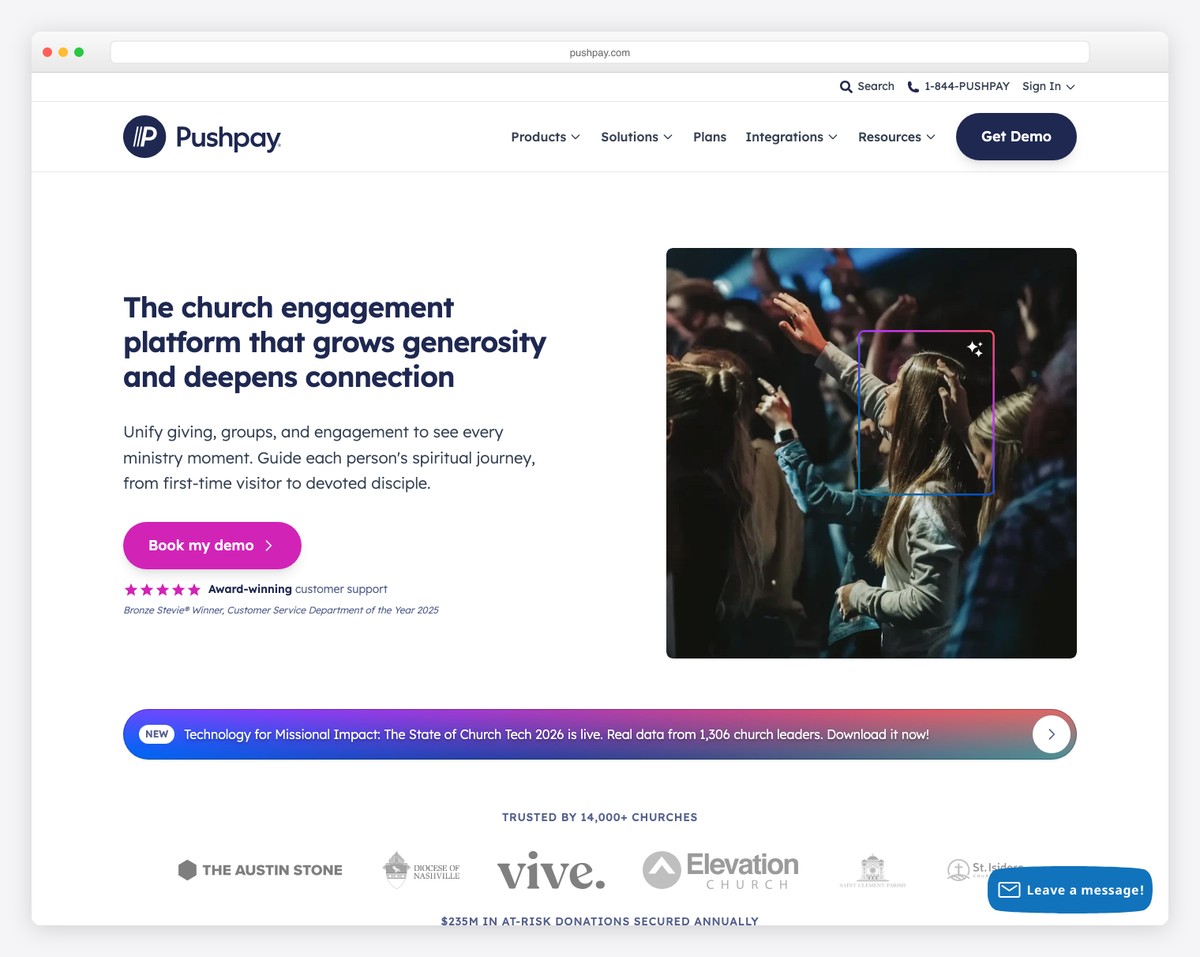
Churches that make digital giving easy consistently see donations grow — Pushpay’s published research reports a 65% average increase in digital giving, with recurring donors growing 24% on average. When you make it easy for people to give digitally, they give more often, more consistently, and in larger amounts.
Yet many churches either don’t have online giving set up, have it buried on a hard-to-find page, or use a clunky system that discourages the spontaneous generosity that digital giving is designed to capture. Over 60% of all financial transactions in the US are now digital — your congregation already pays rent, buys groceries, and tips their barista from their phones. Giving to your church should be just as frictionless.
This guide walks you through everything: choosing the right giving platform, setting it up on your website (regardless of which website builder you use), configuring giving options, placing giving strategically across your site, and promoting digital giving to your congregation.
Before diving into the how, let’s address the why — because some church leaders still view online giving as optional or even slightly uncomfortable.
Online giving doesn’t replace the in-service offering — it supplements it. Many churches find their best approach is both: a physical offering moment during worship (which has spiritual significance and community value) alongside a digital option for those who prefer it. Over time, the split naturally shifts toward digital, but the physical option remains meaningful for many congregants.
The platform you choose determines the fees you pay, the features your donors get, and how easily giving integrates with your website and church management system. Here are the major options churches use today.
| Platform | Monthly Fee | Transaction Fee | Recurring Giving | Mobile App | Text Giving | Fee Coverage | Best For |
|---|---|---|---|---|---|---|---|
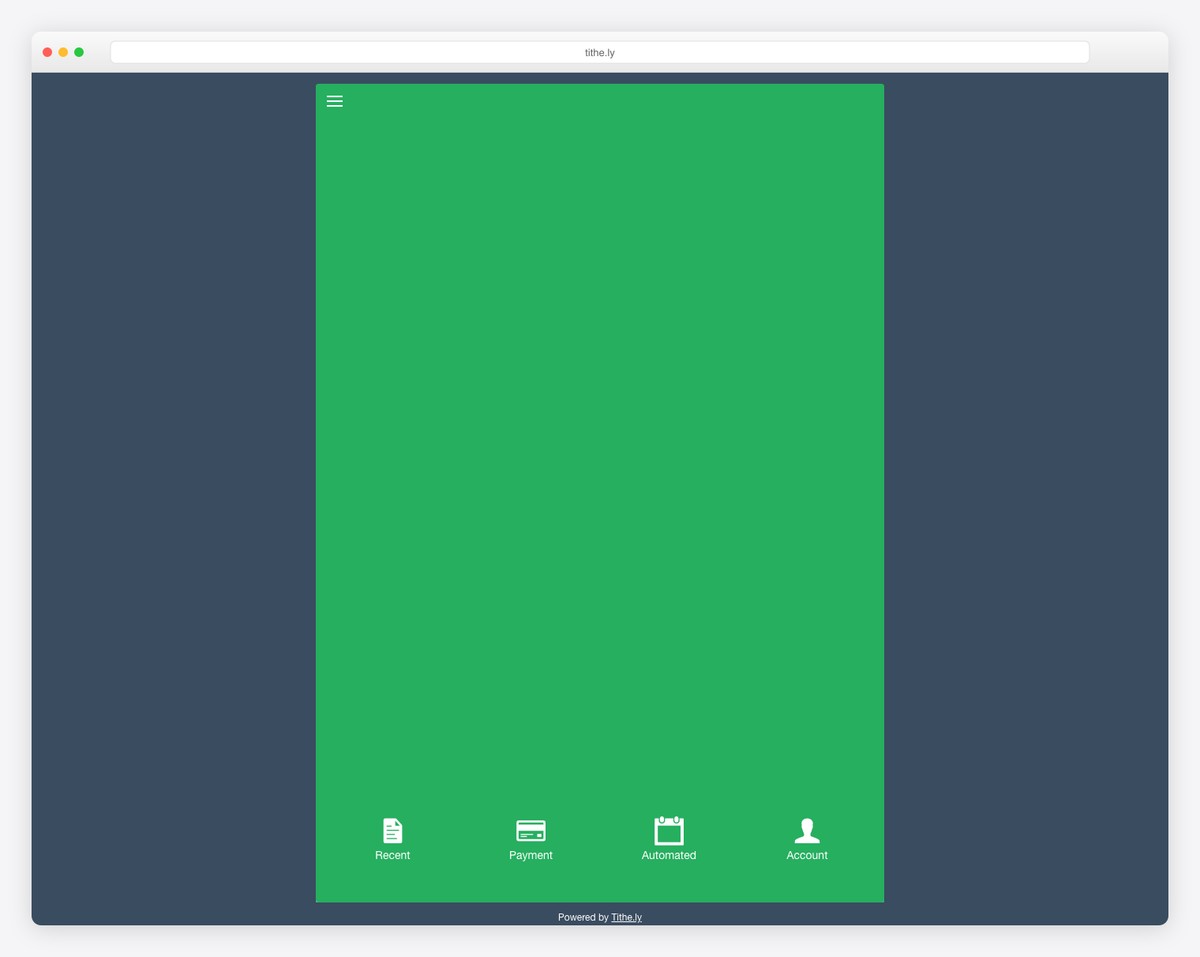
| Tithe.ly | Free | 2.9% + 30¢ | Yes | Yes | Yes | Yes (donor option) | Churches wanting free + full-featured |
| Pushpay | Quote-based (churches report $200–$500/mo) | Included in plan | Yes | Yes (custom branded) | Yes | Yes | Large churches (500+ members) wanting premium engagement |
| Planning Center Giving | Free – $239/mo (usage tiers) | 2.15% + 30¢ (ACH: 0% + 30¢) | Yes | Via PC app | No | Yes | Churches already using Planning Center |
| GiveWP (WordPress) | Free (plugin); Pro $199+/yr | Stripe: 2.9% + 30¢ | Yes (with addon) | No (web responsive) | No | Yes (with addon) | WordPress churches wanting data ownership |
| Subsplash Giving | Included in Subsplash plan | 2.3% + 30¢ (ACH: 1%) | Yes | Yes (via app) | Yes | Yes | Churches using Subsplash app ecosystem |
| PayPal Donate | Free | 2.2% + 30¢ (nonprofit) | Yes | Via PayPal app | No | No | Churches needing something basic and fast |
| Stripe (via embed) | Free | 2.9% + 30¢ | Yes (requires coding) | No | No | No | Tech-savvy churches wanting custom solution |
Under 200 members: Tithe.ly (free, full-featured, works on any website)
200-500 members using Planning Center: Planning Center Giving (lowest fees, integrated with your ChMS)
200-500 members on WordPress: GiveWP (data ownership, flexible, professional)
500+ members: Pushpay or Subsplash Giving (engagement tools, custom apps, analytics)
Any size, need something today: Tithe.ly (sign up and embed in under 30 minutes)
The setup process varies by platform and website builder. Below are instructions for the most common combinations. No matter which route you take, plan to complete the setup in one sitting — most churches can go from zero to accepting donations in under an hour.
Tithe.ly is the most universally compatible giving solution because it works as an embedded button on any website — Squarespace, WordPress, Wix, or any other platform.
If your church uses WordPress, GiveWP is the best native giving solution. Your donation data lives in your own WordPress database — full ownership and control.
If your church already uses Planning Center for worship planning, volunteer scheduling, or people management, their giving product integrates seamlessly.
PayPal isn’t the most elegant solution, but it works for churches that need to accept online donations immediately.
Limitations: PayPal redirects donors to the PayPal site (not as seamless), doesn’t support fund designation without workarounds, and lacks church-specific features like giving statements and year-end tax letters. Consider it a temporary solution while you set up a proper church giving platform.
Once your platform is connected, how you configure the giving experience makes a significant difference in donation rates.
Let donors designate where their gift goes. Most churches need 3-5 funds:
Don’t create too many funds. More than 5-6 options creates decision fatigue and slows the giving process. Make the General Fund the default selection.
Pre-set giving amounts remove friction. Research shows that suggested amounts increase average gift size by 12-20%. We recommend these tiers:
The pre-selected default amount acts as an anchor. Setting it at $50 subtly communicates that this is a “normal” gift — neither too small nor intimidating.
Recurring giving is where the real financial transformation happens. A $100/month recurring donor gives $1,200/year — and they rarely cancel. Make recurring giving prominent in your form, not hidden in a submenu.
Offer these frequencies: Weekly, Bi-weekly, Monthly (default), and One-time. Monthly is the most popular by far. Some platforms also offer an annual option, which is useful for larger commitments.
Most giving platforms let you add a checkbox that says something like: “I’d like to cover the processing fee so 100% of my gift goes to the church.” When enabled, donors pay the 2.9% + 30¢ fee on top of their gift.
This single feature can save your church thousands of dollars annually. On $100,000 in annual online giving, fee coverage at a 50% opt-in rate saves approximately $1,500/year. Always enable this — donors are consistently willing to cover fees when asked clearly.
ACH (direct bank transfer) processing fees are dramatically lower than credit card fees — often 0-1% versus 2.9%. For larger recurring gifts, encourage donors to use ACH. Planning Center Giving charges 0% + $0.30 for ACH; Subsplash charges 1%. The savings on a $500/month gift add up quickly.
Having online giving set up means nothing if visitors can’t find it. Strategic placement is critical. Follow our church homepage formula for overall layout guidance, and make sure giving is prominent in these key locations:
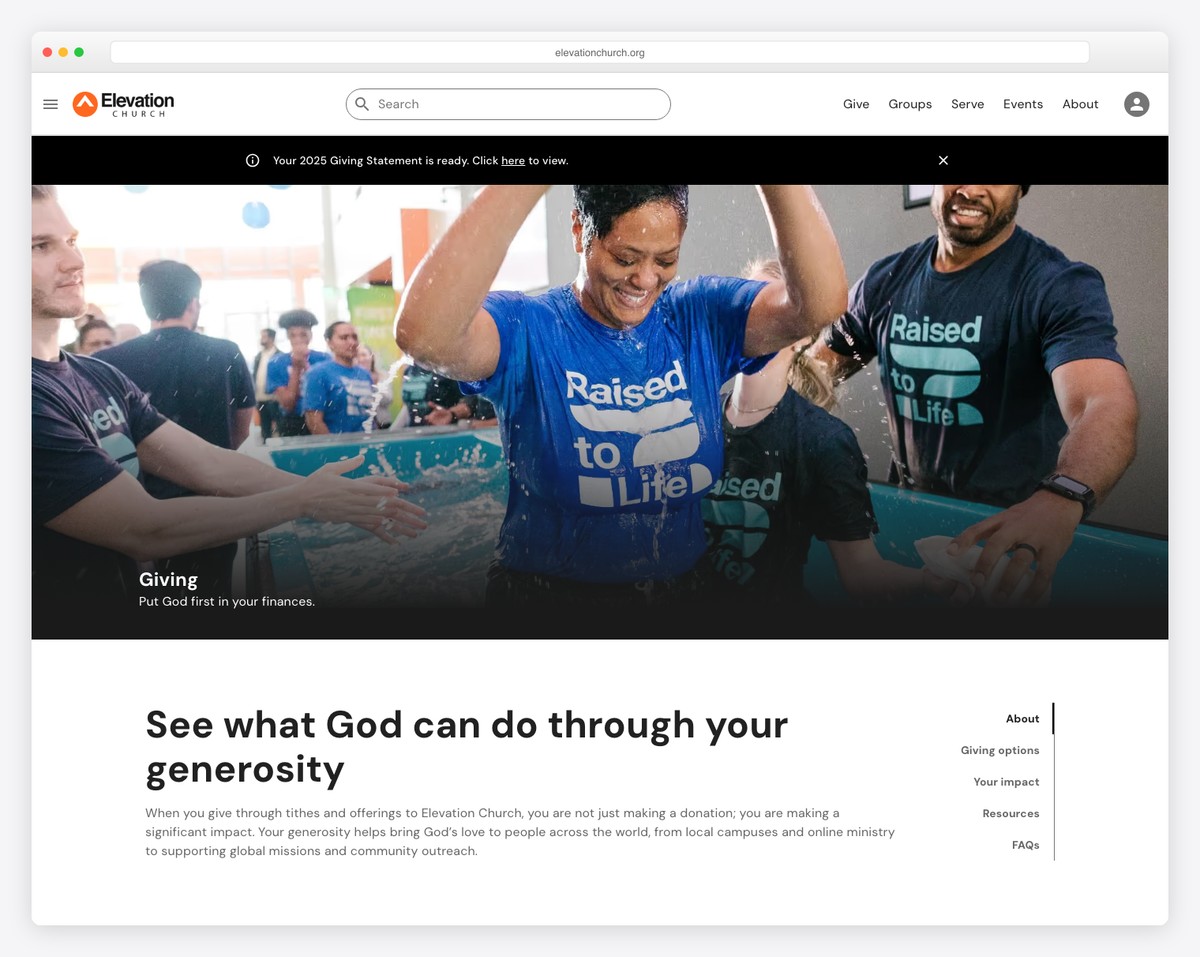
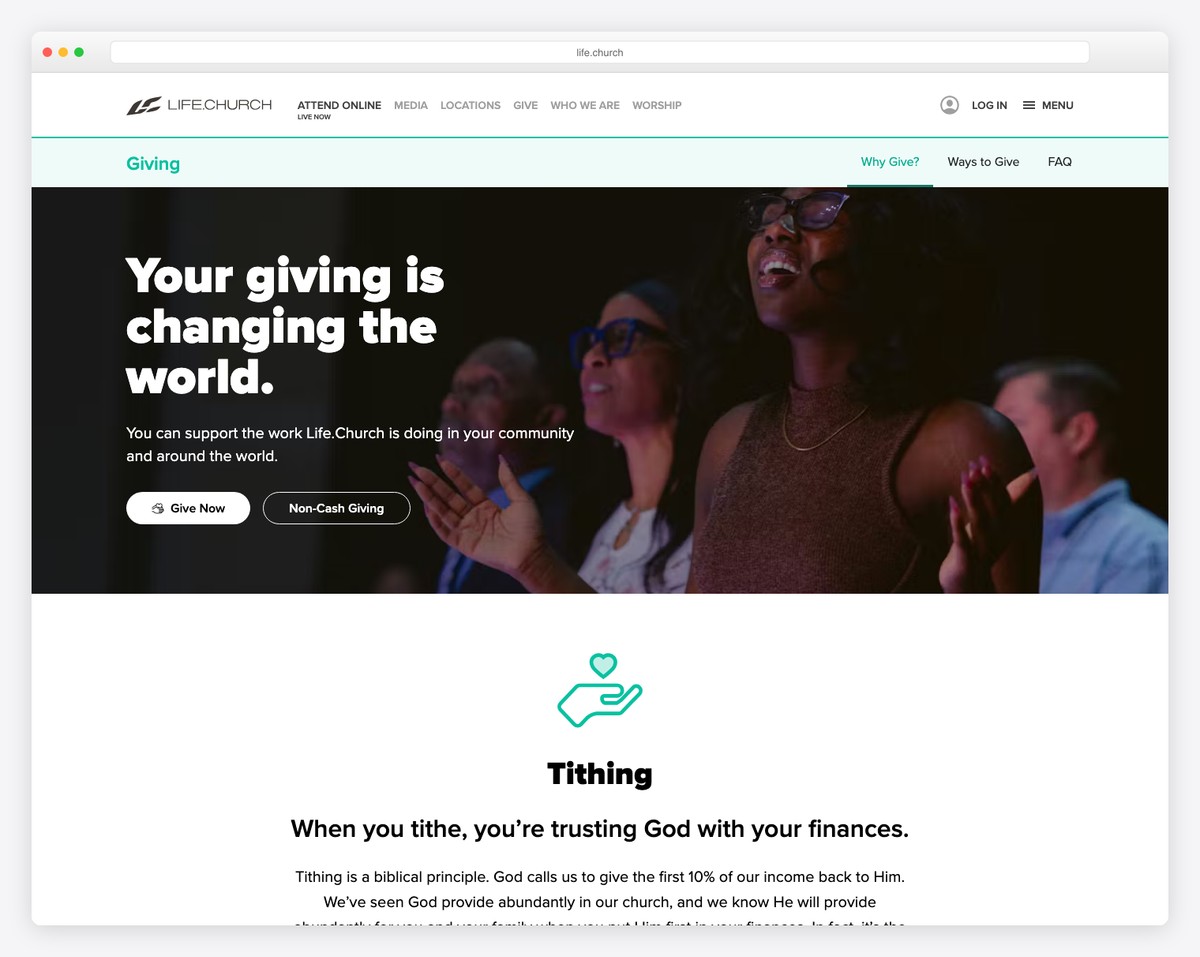
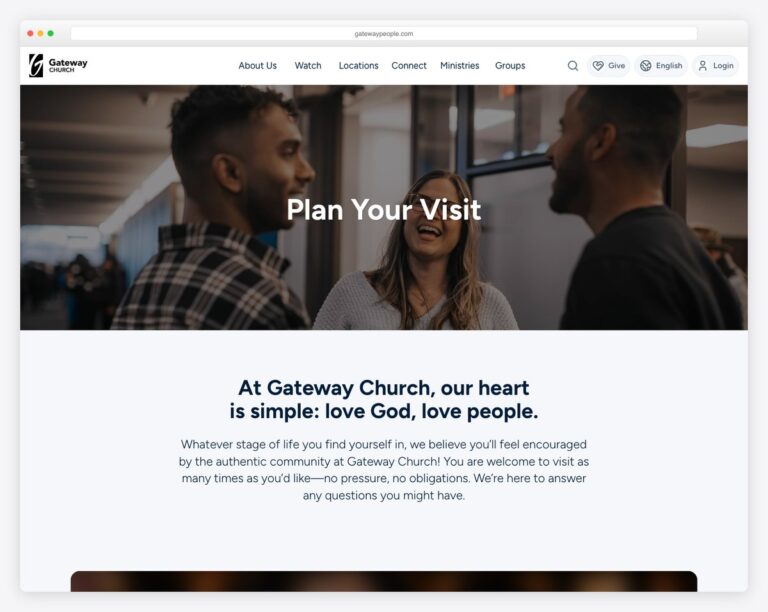
Add a “Give” link to your main website navigation. This is the most important placement. The link should be visible on every page, in the header navigation bar. Some churches use a distinct button style (colored background, different from other nav links) to make it stand out. See examples of effective navigation in our essential church website pages guide.
Create a standalone giving page (yourchurch.com/give) that includes:
Include a giving call-to-action on your homepage, but keep it tasteful. A section that says “Support Our Mission” with a brief line about impact and a “Give Now” button works well. Don’t make giving the first thing visitors see — it should come after your welcome section, service times, and current sermon series.
On your sermon pages, include a giving call-to-action after the sermon video or audio. People are most moved to give when they’ve just engaged with your teaching. A simple “Was this message meaningful to you? Support our ministry” with a give button converts well.
Include a “Give” link in your footer alongside other key links. This ensures the giving option is available on every page, even if someone scrolls past the header navigation.
Over 60% of online giving happens on mobile devices. Make sure your giving button is easy to tap on a phone screen (minimum 44×44 pixels), the giving form is mobile-optimized (no pinching or zooming), and the process requires as few taps as possible. Test the entire giving flow on your phone before going live.
Setting up the technology is only half the battle. You also need to help your congregation discover and adopt digital giving. Here are proven promotion strategies:
As a 501(c)(3) nonprofit, your church needs to provide year-end giving statements to donors for tax purposes. Most giving platforms handle this automatically:
Make sure your giving statements include: your church’s legal name, EIN, the donor’s name and address, each donation date and amount, a statement that no goods or services were provided in exchange for the gift (standard IRS language), and the total for the year.
Once online giving is running, track these metrics monthly:
The platform itself can be free (Tithe.ly, GiveWP free version, PayPal). Transaction fees are typically 2.2-2.9% plus 30 cents per transaction. On $100,000 in annual online giving, that’s roughly $2,900-3,200 in fees — but with fee coverage enabled (where donors opt to cover the fee), churches typically recover 40-60% of that cost. The net cost is usually far less than what you’d spend printing envelopes and processing checks.
Yes. All reputable giving platforms (Tithe.ly, Pushpay, Planning Center, GiveWP with Stripe) use bank-level encryption (256-bit SSL) and are PCI DSS compliant. Your church never sees or stores credit card numbers — the payment processor handles all sensitive data. These platforms are significantly more secure than passing cash-filled envelopes through an auditorium.
That’s a theological and cultural decision for your church leadership. Many churches maintain the offering moment as an act of worship while also mentioning digital options. Some have transitioned to giving boxes at the exits. Others have eliminated the physical offering entirely. There’s no universal right answer — do what fits your church culture.
Most platforms let you create temporary funds for capital campaigns, mission trips, or special projects. Create the fund, promote it with a dedicated giving link, and close it when the campaign ends. Tithe.ly, GiveWP, and Planning Center all support this. Some churches create campaign-specific giving pages on their website that link directly to the designated fund.
Yes, and this is one of the most important integrations to set up. Planning Center Giving integrates natively with Planning Center People. Tithe.ly integrates with most major ChMS platforms. Pushpay integrates with Church Community Builder, Planning Center, and others. GiveWP stores data in WordPress, which can be exported or connected via API. Having giving data flow automatically into your ChMS eliminates manual data entry and reduces errors.
The technical setup takes 30-60 minutes for most platforms. Bank account verification typically takes 1-3 business days. So from start to accepting your first real donation, plan for about a week. You can set everything up and test in the meantime.
Text giving lets donors text a keyword to a number to initiate a gift (e.g., text GIVE to 55555). Tithe.ly, Pushpay, and Subsplash all offer this. It’s especially useful during services when you can display the text number on screen. First-time text givers set up their payment method once, then future gifts take seconds. It’s particularly popular with younger demographics.
If your church doesn’t have online giving yet, don’t overthink the platform choice. Start with Tithe.ly — it’s free, works on any website, and you can be accepting donations this week. You can always switch platforms later as your needs evolve.
If you already have online giving but it’s underperforming, focus on three things: make it visible (navigation, homepage, after sermons), enable fee coverage, and promote recurring giving. These three changes typically increase online giving by 20-40% within 90 days.
For help building the rest of your church’s online presence, start with our step-by-step guide to building a church website or our church website launch checklist to make sure you haven’t missed anything.

Church Website Features
Church Website Features
Church Website Features
10 complete church website templates, MIT licensed. Browse every demo freely; we will email you whichever folder you want.
All templates