Church Website Checklist: Everything You Need Before Launch
Launching a church website without a checklist is like hosting Easter Sunday without a plan — something important will get missed, and you won’t realize it until it’s too late. Whether you’re building your church’s first website or doing a complete redesign, this checklist ensures nothing falls through the cracks.
We’ve organized this into five phases: Planning, Essential Pages, Pre-Launch QA, SEO Setup, and Post-Launch. Plus an ongoing maintenance schedule to keep your site healthy after it goes live. Print this out, assign owners, and check things off as you go.
In This Guide
Phase 1: Planning (Before You Build Anything)
Rushing into building before planning is the most common church website mistake. These 10 items set the foundation for everything that follows.
1. Define Your Target Audience
Your church website serves two audiences: first-time visitors exploring your church online, and existing members looking for information. First-time visitors are the primary audience — they’re the ones who need to be welcomed, informed, and invited. Members already know your church; they need easy access to service times, events, sermons, and giving.
Every design and content decision should be filtered through the question: “Would a first-time visitor understand this and know what to do next?”
2. Set Clear Website Goals
What do you want your website to accomplish? The most common church website goals are:
- Convert online visitors to in-person visitors
- Provide easy access to sermons and teaching content
- Enable online giving
- Communicate events and announcements
- Help newcomers get connected to community
Rank these in order of priority for your church. Your highest priority goal should shape your homepage layout, navigation structure, and most prominent calls-to-action.
3. Establish Your Budget
Be realistic about what your church can spend — both upfront and monthly. Here are rough ranges by approach:
- DIY with hosted builder (Squarespace, Wix, Tithe.ly): $0-33/month
- DIY with WordPress: $5-80/month (hosting + plugins)
- Professional design on any platform: $2,000-10,000+ one-time
For a detailed breakdown, see our church website cost guide. Remember that the biggest ongoing cost isn’t the platform — it’s the staff or volunteer time to maintain the site.
4. Choose Your Platform
This is one of the biggest decisions and affects everything that follows. Your main options:
- Squarespace — Best design quality, zero maintenance, no church-specific features
- WordPress — Maximum flexibility, requires technical maintenance
- Tithe.ly Sites — Church-specific features, giving + app included, good design
- Wix — Free plan available, lower design quality
- Subsplash — Premium all-in-one ecosystem, highest cost
Read our church website builder comparison for a detailed side-by-side analysis, or take our recommendation: Squarespace for most churches under 500 members, WordPress for tech-savvy churches wanting maximum control, Tithe.ly for churches wanting all-in-one simplicity.
5. Secure Your Domain Name
Register your domain before building your site. Ideal format: yourchurchname.com. If that’s taken, try yourchurchnamecity.com or yourchurchname.church (the .church TLD is available and increasingly recognized).
Register through Namecheap (~$9 first year, ~$18/year at renewal) or your website platform. Keep domain registration separate from hosting so you maintain control if you switch platforms. Avoid hyphens, numbers, and long domain names — keep it simple and memorable.
6. Assign a Website Owner
Your website needs a designated owner — one person responsible for keeping it updated, handling content changes, and being the point of contact for website issues. This can be a staff member (communications director, administrative assistant) or a dedicated volunteer.
Document who has login credentials for hosting, domain registrar, website builder, and any connected services (Google Analytics, giving platform, email marketing). Store this information securely where leadership can access it if the website owner transitions out.
7. Gather Photography
Photography is the single biggest factor in how professional your church website looks. Before building, gather:
- Hero photo: Wide-angle shot of your congregation during worship or community gathering
- Interior shots: Your worship space, lobby, children’s area, gathering spaces
- People photos: Candid shots of people connecting, serving, worshipping — diversity in age and ethnicity
- Staff/leadership headshots: Consistent style (same background, similar framing)
- Ministry photos: Children’s ministry, youth group, small groups, service projects
- Exterior shot: Your building (for Google Business Profile and “Plan Your Visit” page)
If you don’t have good photos, schedule a Sunday morning photo session before building the site. A volunteer with a DSLR or modern smartphone can capture what you need in one morning. This is worth the effort — great photos on a simple template look better than mediocre photos on an expensive design.
8. Prepare Your Logo and Branding
Have your logo in high-resolution format (PNG with transparent background, plus SVG if available). Define your brand colors (2-3 primary colors) and choose 1-2 fonts. Consistent branding makes your website look professional and intentional. See our church branding guide for detailed direction.
9. Collect Essential Information
Before you open the website builder, have this information ready:
- Service times and days (all services)
- Full address with parking information
- Phone number and email address
- Staff names, titles, and bios
- Statement of beliefs or denomination affiliation
- Social media account links
- Ministry descriptions (children, youth, small groups, outreach)
- Online giving platform credentials and embed codes
10. Write a Church Description
Write a 2-3 sentence description of your church that avoids jargon and speaks to visitors. This will be used on your homepage, your Google Business Profile, your social media bios, and your meta description. Think of it as your church’s elevator pitch. For help writing effective church copy, see our church website copywriting guide.
Phase 2: Essential Pages (Build These First)
Your church website doesn’t need 30 pages on launch day. It needs 8 great pages. Build these first, get them right, and add more later. For detailed guidance on each page, see our essential church website pages guide.
1. Homepage
Your digital front door. Follow our church homepage formula: hero section with warm photo and clear CTA, service times and location, current sermon series, three pathway cards, 2-3 upcoming events, brief about section, and a comprehensive footer. This is the most important page on your site and deserves the most attention.
2. About Page
Tell your church’s story in a way that connects with visitors. Include: a brief history (2-3 paragraphs), your mission and values (in plain language), your beliefs or denominational affiliation, and photos of your community. This page answers “Who is this church?” — make it personal and inviting, not corporate and institutional.
3. Plan Your Visit / What to Expect
This is the most important page for converting online visitors to in-person visitors. Cover: what a typical service looks like (length, style, format), what to wear (always “come as you are”), where to park, what to do when you arrive, what’s available for children, and how to find the visitor welcome area. Include a photo of your building exterior so visitors know they’re in the right place. A short welcome video from your pastor is highly effective here.
4. Sermons Page
Your sermon archive is often the most-visited section of a church website. At minimum, embed your most recent sermon video (YouTube or Vimeo) and provide links to your sermon podcast. Ideally, build a searchable archive organized by series, speaker, and date. On WordPress, use a sermon plugin. On Squarespace, use the blog organized by categories.
5. Ministries Page
An overview of your church’s ministries with brief descriptions and links to learn more or get involved. At minimum, cover: children’s ministry (with safety/check-in details — this is a top concern for parents), youth ministry, small groups or community groups, worship ministry, and outreach/missions. Each ministry can have a sub-page or section with more detail, but the overview page gives visitors a sense of your church’s scope and activity.
6. Staff / Leadership Page
People connect with people, not organizations. Include headshots, names, titles, and brief bios for your pastoral staff and key leaders. Bios should be warm and personal — not just credentials. Include something relatable: “Pastor Mike loves terrible dad jokes, smokes a mean brisket, and has been married to his high school sweetheart for 22 years.” Contact information (email at minimum) for each staff member builds trust and accessibility.
7. Give Page
A dedicated giving page with your online giving form or button, a brief message about stewardship (not a guilt trip — keep it positive), available giving funds, information about recurring giving, and how to get a giving statement. See our complete online giving setup guide for detailed instructions on every aspect of this page.
8. Contact Page
Make it easy for people to reach you. Include: a contact form (name, email, message — keep it simple), your church’s email address and phone number, physical address with an embedded Google Map, office hours, and social media links. If your church has specific contacts for different needs (prayer requests, facility rentals, membership), list those separately.
Phase 3: Pre-Launch Quality Assurance
Before you share your new website with anyone, work through this QA checklist. These 10 items catch the issues that make church websites look unprofessional or broken.
1. Mobile Testing
Open your website on at least two phones (iPhone and Android if possible). Navigate every page, tap every button, fill out every form, and test the giving process. Over 60% of your visitors will be on mobile — if anything is broken, hard to read, or hard to tap on a phone, fix it before launch. Check that text is readable without zooming, buttons are large enough to tap, and images don’t extend beyond the screen.
2. Page Speed Test
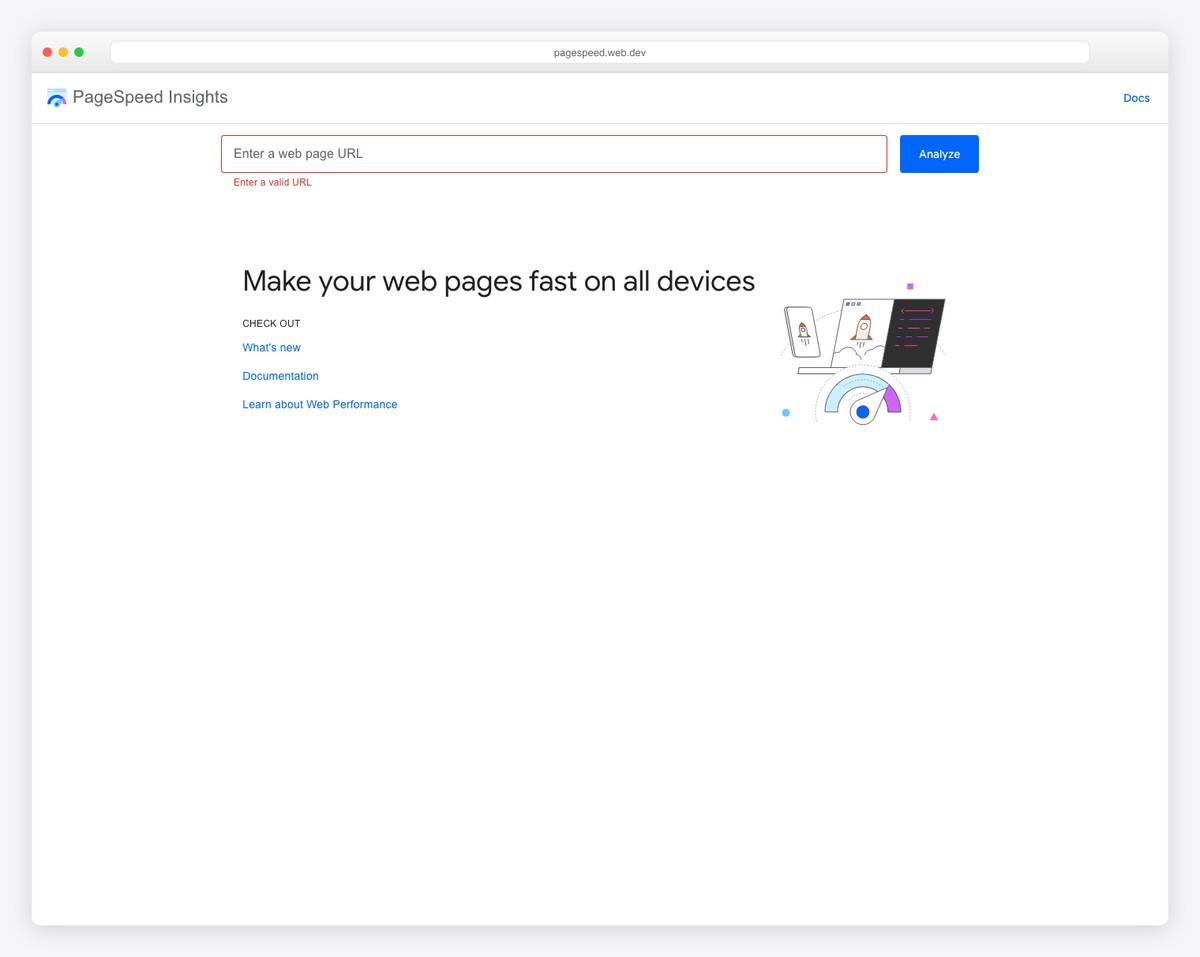
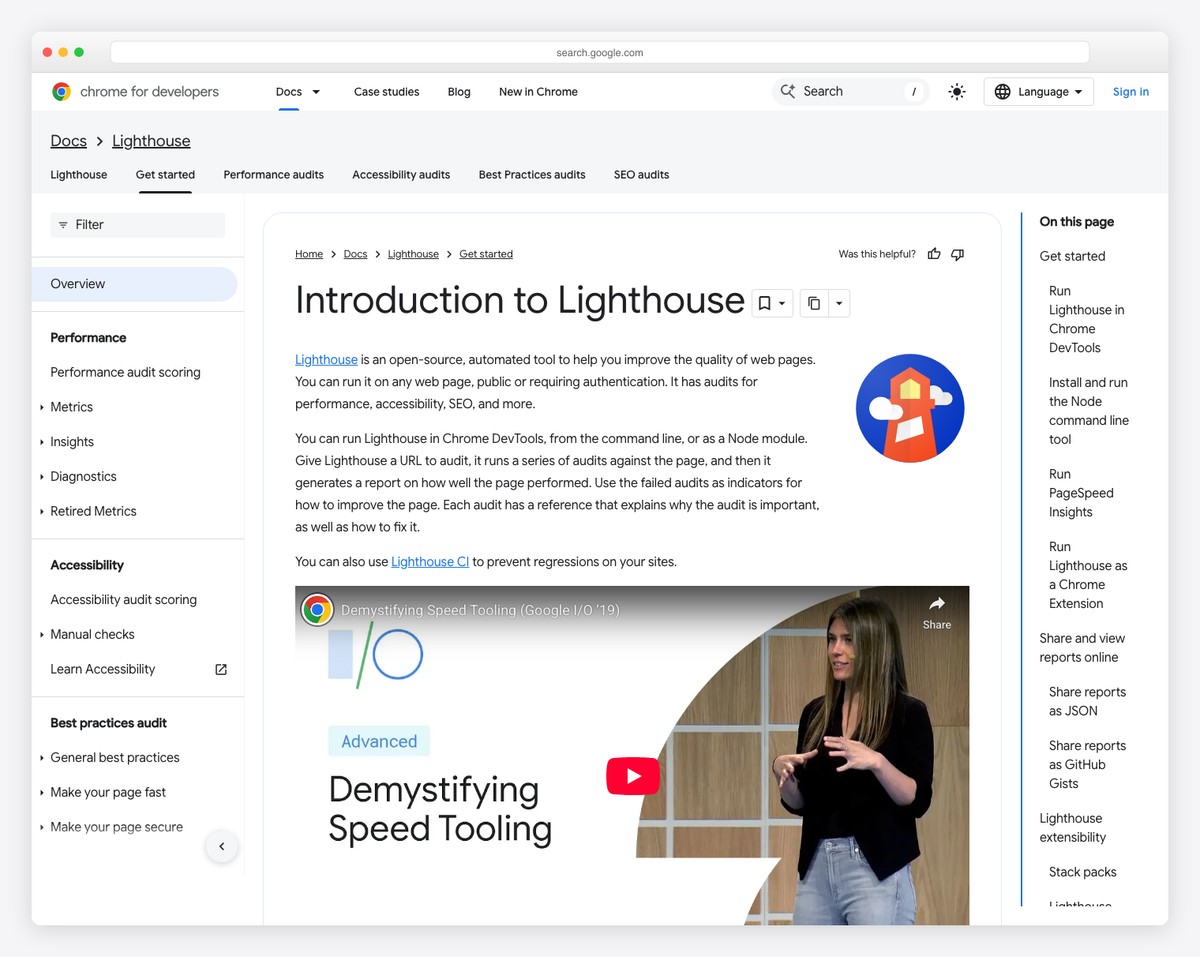
Run your homepage through Google PageSpeed Insights (pagespeed.web.dev). Target a mobile score above 70 and a desktop score above 85. If your score is low, the most common fixes are: compress images (use TinyPNG or ShortPixel), reduce the number of fonts loaded, minimize unnecessary plugins (WordPress), and enable caching. A slow website loses visitors before they see your content.
3. Check Every Link
Click every link on every page. Broken links — links that lead to error pages — make your site look abandoned. Use a free tool like brokenlinkcheck.com to scan your entire site automatically. Pay special attention to social media links, external resource links, and navigation menu items.
4. Test All Forms
Submit every form on your site: contact form, prayer request form, event registration, volunteer signup, connect card. Verify that submissions arrive where they should (email inbox, CRM, spreadsheet) and that the confirmation message or redirect works correctly. Nothing is more frustrating for a visitor than submitting a heartfelt prayer request into a form that goes nowhere.
5. Test Online Giving
Make a small test donation ($1) and verify the entire flow: landing on the giving page, choosing an amount and fund, entering payment information, completing the transaction, receiving a receipt, and seeing the donation in your giving platform dashboard. Test on both desktop and mobile. This is your church’s revenue system — it must work flawlessly.
6. Cross-Browser Testing
View your site in Chrome, Safari, Firefox, and Edge. Most modern platforms handle cross-browser compatibility well, but occasionally fonts render differently, layouts shift slightly, or interactive elements behave unexpectedly in specific browsers. A quick visual check in each browser catches these issues.
7. Favicon
Upload a favicon — the small icon that appears in browser tabs next to your page title. Use your church logo simplified to work at 32×32 pixels. A missing favicon (showing the default browser icon or your platform’s logo) is a small but noticeable sign of an unfinished site.
8. 404 Error Page
Customize your 404 (page not found) error page. Instead of a generic “Page Not Found” message, create a friendly page that says something like: “Oops — we couldn’t find that page. Here are some helpful links:” followed by links to your homepage, sermons, and contact page. Visitors who hit a dead end should always have a way forward.
9. Proofread Everything
Typos, grammatical errors, and placeholder text (“Lorem ipsum”) undermine credibility. Have at least two people proofread every page. Read the text out loud — it catches errors that silent reading misses. Pay special attention to staff names (spelled correctly?), service times (accurate?), and your church address (complete and correct?).
10. Basic Accessibility Check
Your church website should be usable by everyone, including people with disabilities. Check these basics: all images have descriptive alt text, text has sufficient contrast against backgrounds (use WebAIM Contrast Checker), the site is navigable by keyboard (tab through the page), and video content has captions available. For a comprehensive guide, see our church website accessibility resource.
Phase 4: SEO Setup
Search engine optimization isn’t optional — it’s how people in your community find your church online. These 7 items form the SEO foundation. For a complete strategy, read our church SEO guide.
1. Claim and Complete Your Google Business Profile
This is the single most impactful SEO action for a church. When someone searches “churches near me,” Google shows results from Google Business Profile (the map listing with photos, hours, and reviews). Claim yours at business.google.com, fill out every field completely, add photos, set your service hours, list your denomination, and add a link to your website. This alone can drive more traffic than any on-page SEO work.
2. Set Up Google Search Console
Google Search Console (search.google.com/search-console) is free and tells you how Google sees your website: which pages are indexed, which search queries bring traffic, and any errors Google finds. Verify your site ownership, submit your sitemap (usually yourchurch.com/sitemap.xml), and check back monthly to monitor performance.
3. Write Unique Page Titles
Every page on your site needs a unique, descriptive title tag. The title appears in browser tabs and search results. Format: “[Page Name] | [Church Name]” — for example, “Plan Your Visit | Grace Community Church” or “Sermon Archive | Grace Community Church.” Keep titles under 60 characters.
4. Write Meta Descriptions
Meta descriptions appear under your page title in search results. Write a compelling 150-160 character description for each page that includes your church name and location. Example: “Join Grace Community Church in downtown Austin for Sunday services at 9 & 10:30 AM. A welcoming community for families, singles, and seekers.”
5. Add Alt Text to All Images
Alt text describes images for search engines and screen readers. Every image on your site should have descriptive alt text. Instead of “IMG_4523.jpg,” write “Congregation worshipping during Sunday morning service at Grace Community Church.” Include your church name in alt text naturally — it helps with local search visibility.
6. Verify SSL Certificate
Your website URL should start with “https://” (not “http://”). The SSL certificate encrypts data between your site and visitors, and Google penalizes sites without it. Most modern platforms (Squarespace, Wix, Tithe.ly) include SSL automatically. On WordPress, verify with your host that SSL is active and configured. A missing SSL certificate shows a “Not Secure” warning in browsers — a terrible look for a church website.
7. Apply for the Google Ad Grant
Google offers eligible nonprofits (including 501(c)(3) churches) up to $10,000 per month in free Google Ads advertising through the Google Ad Grant program. This is real money that can drive significant traffic to your church website. Application takes 2-4 weeks. Our complete Google Ad Grant guide walks you through eligibility, application, and campaign setup.
Phase 5: Post-Launch
Your website is live — now what? These 6 items ensure a strong launch and set you up for ongoing success.
1. Announce the Launch
Don’t just publish and hope people find it. Announce your new website from the stage on Sunday, in your email newsletter, on all social media channels, and in your church app (if you have one). Show the URL on screen during announcements. Ask your congregation to visit the site and give feedback.
2. Update All External Listings
Your church website URL appears in many places: Google Business Profile, Facebook page, Instagram bio, church directories (like Church Finder), denominational listings, Yelp, Apple Maps, and any advertising materials. Update every listing with your new URL. If your URL changed during the rebuild, set up 301 redirects from old URLs to new ones to preserve any existing search rankings.
3. Install Analytics
Set up Google Analytics 4 (analytics.google.com) to track visitor behavior. You’ll want to know: how many people visit your site, which pages they view most, where they come from (Google search, social media, direct), and what devices they use. Most platforms have a simple field where you paste your GA4 measurement ID. Check analytics monthly to understand what’s working and what needs improvement.
4. Establish a Maintenance Schedule
A church website that isn’t maintained becomes stale and eventually harmful to your church’s reputation. Set a maintenance schedule and assign it to your website owner. See the full maintenance table below, and our detailed church website maintenance guide for more.
5. Ask for Google Reviews
Google reviews directly impact your local search visibility. After launching your site, ask regular attendees to leave an honest Google review. A church with 20-30 positive reviews ranks significantly better in “churches near me” searches than a church with zero reviews. Make it easy by sharing a direct review link in your newsletter or bulletin.
6. Connect Social Media
Ensure your website and social media work together. Link to your social profiles from your website footer. Share new website content (sermons, blog posts, events) on social media with links back to your site. Embed your social feeds on your site if your platform supports it. This creates a virtuous cycle: social drives traffic to your site, and your site drives followers to social. For a comprehensive strategy, see our church marketing guide.
Ongoing Maintenance Schedule
Use this table to keep your church website healthy and current. Assign each task to a specific person and schedule it as a recurring calendar event.
| Frequency | Task | Details |
|---|---|---|
| Weekly | Update sermon content | Upload latest sermon audio/video, add to archive |
| Weekly | Update events | Add new events, remove past events from homepage |
| Weekly | Check forms and giving | Verify contact form submissions arrive, giving works |
| Monthly | Review analytics | Check traffic trends, top pages, mobile vs desktop split |
| Monthly | Update content | Refresh homepage text, update staff changes, add blog posts |
| Monthly | Run updates (WordPress) | Update core, themes, and plugins; test site after updating |
| Monthly | Check for broken links | Run broken link checker, fix any issues |
| Quarterly | Refresh photography | Add new event photos, update seasonal hero images |
| Quarterly | SEO check | Review Google Search Console, check rankings, update meta descriptions |
| Quarterly | Security review (WordPress) | Review security logs, check backups are running, update passwords |
| Annually | Full site audit | Review all pages, update staff bios, verify all information is current |
| Annually | Evaluate platform | Is your current platform still the right fit? Review alternatives if needs have changed |
| Annually | Renew domain and subscriptions | Verify domain, hosting, and plugin subscriptions are active and renewed |
The Complete Checklist (Quick Reference)
Here’s the full checklist in a condensed, printable format:
Phase 1: Planning
- ☐ Define target audience (visitors + members)
- ☐ Set website goals and prioritize them
- ☐ Establish budget (upfront + monthly)
- ☐ Choose platform
- ☐ Register domain name
- ☐ Assign website owner
- ☐ Gather photography
- ☐ Prepare logo and branding
- ☐ Collect essential information
- ☐ Write church description
Phase 2: Essential Pages
- ☐ Homepage (hero, times, sermon, pathways, events, about, footer)
- ☐ About page
- ☐ Plan Your Visit / What to Expect
- ☐ Sermons page
- ☐ Ministries overview
- ☐ Staff / Leadership page
- ☐ Give page
- ☐ Contact page
Phase 3: Pre-Launch QA
- ☐ Mobile testing (iPhone + Android)
- ☐ Page speed test (target: mobile 70+, desktop 85+)
- ☐ All links working
- ☐ All forms tested and submitting correctly
- ☐ Online giving tested with real transaction
- ☐ Cross-browser check (Chrome, Safari, Firefox, Edge)
- ☐ Favicon uploaded
- ☐ 404 page customized
- ☐ All content proofread
- ☐ Basic accessibility check
Phase 4: SEO Setup
- ☐ Google Business Profile claimed and completed
- ☐ Google Search Console set up with sitemap submitted
- ☐ Unique page titles on every page
- ☐ Meta descriptions written for every page
- ☐ Alt text on all images
- ☐ SSL certificate active (https://)
- ☐ Google Ad Grant application submitted
Phase 5: Post-Launch
- ☐ Launch announced (stage, email, social media)
- ☐ All external listings updated with new URL
- ☐ Google Analytics installed
- ☐ Maintenance schedule established and assigned
- ☐ Google reviews requested from congregation
- ☐ Social media connected and cross-promoting
Frequently Asked Questions
How long does it take to build a church website from scratch?
For a volunteer using a platform like Squarespace or Tithe.ly Sites, plan for 2-4 weeks from start to launch (working on it a few hours per week). WordPress takes slightly longer (3-6 weeks) due to the steeper learning curve and additional setup. A professional designer can typically deliver a church website in 4-8 weeks. The biggest time investment isn’t building — it’s gathering content (photos, copy, staff bios, ministry descriptions). Start collecting content early. For a step-by-step walkthrough, use our how to build a church website guide.
What’s the most common mistake churches make when launching a website?
Trying to include too much. Churches often want to put every ministry, every announcement, every Bible verse, and every leader on the website before launching. This leads to delayed launches, cluttered designs, and overwhelmed volunteers. Launch with 8 great pages and add more over time. A simple, well-executed site live today is better than a comprehensive site that launches “someday.”
Should we build the website ourselves or hire a professional?
If you have a volunteer with basic computer skills and 15-20 hours to invest, DIY with Squarespace or Tithe.ly Sites produces excellent results. If you have budget ($3,000-10,000+) and want a custom design, a professional makes sense — especially for larger churches where the website represents a significant ministry investment. The hybrid approach (professional design + volunteer maintenance) is also effective.
Do we need a blog on our church website?
Not at launch. A blog is valuable for SEO and community engagement, but only if you’ll update it consistently (at least twice per month). An abandoned blog with one post from two years ago looks worse than no blog at all. Start without a blog, build your core pages, and add a blog later when you have the capacity to maintain it.
How do we handle the transition from our old website?
If you’re replacing an existing site: build the new site completely before switching. Most platforms let you build in a staging environment or on a temporary URL. When ready, update your domain DNS to point to the new site. Set up 301 redirects from old page URLs to their equivalents on the new site (this preserves SEO value). Keep your old hosting active for 30 days as a backup. See our church website redesign playbook for the complete transition process.
What if our church has multiple campuses?
Multi-campus churches can either build one website with campus-specific sub-pages (most common and recommended for 2-5 campuses) or separate websites for each campus (common for 5+ campuses or campuses in different cities). The shared approach is simpler to maintain and better for SEO (all authority goes to one domain). Include a campus selector on the homepage and ensure each campus has its own page with service times, address, staff, and specific ministry information.
How important is website security for a church?
Very important — especially if you accept online giving. Your site needs SSL (HTTPS), strong passwords, and regular security updates. On WordPress, add a security plugin and maintain regular backups. On hosted platforms (Squarespace, Wix, Tithe.ly), security is handled automatically. Our church website security guide covers the essentials.
Launch Day and Beyond
A church website is never truly “finished” — it’s a living tool that grows with your ministry. But there’s a difference between a website that’s perpetually “under construction” and a website that launches well and improves over time.
Use this checklist to launch confidently, knowing the essentials are covered. Then use the maintenance schedule to keep your site fresh, accurate, and effective at welcoming new visitors and serving your congregation.
If you need help choosing a platform, start with our church website builder comparison. If you need a step-by-step building guide, follow our how to build a church website tutorial. And when you’re ready to optimize what you’ve built, our guides on SEO, online giving, and design trends will help you take your church’s online presence to the next level.