Church Website Features
You already stream your service to YouTube — but sending people off your website to watch (where they’re one click from a dozen unrelated videos) is a missed opportunity. Embedding the live stream on your own site keeps people on your turf, beside your “Give” button and your “Plan a Visit” link. This is a copy-paste tutorial that actually works in 2026, including the fix for the dreaded black-screen problem the old method causes.
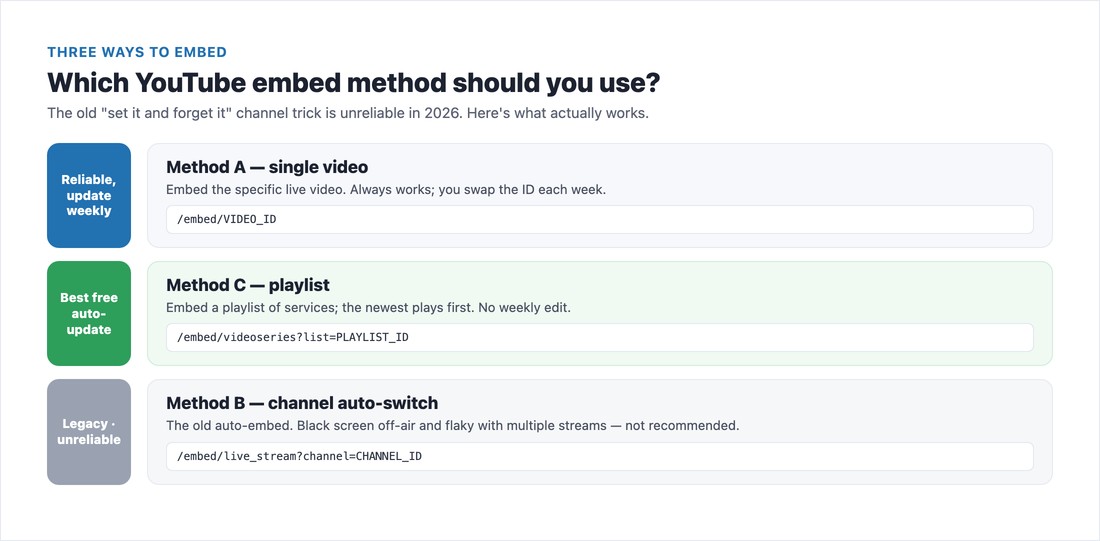
Quick answer to the question everyone asks: yes, you can embed a YouTube live stream — but the old “set it and forget it” channel trick is unreliable now. Here are the three methods and which to use.
In YouTube Studio, make sure your channel is verified and live streaming is enabled, then go to Settings → Channel → Advanced settings and confirm “Allow embedding” is on. Your stream must be Public or Unlisted (embedding doesn’t work for Private). Now grab whichever ID the method below needs — the Video ID (from the watch?v= URL), your Channel ID (Settings → Channel → Advanced, starts with UC…), or a Playlist ID.
This is what actually works dependably in 2026. You embed the specific live video and swap the ID each week (a 30-second job). Wrap it in a responsive container so it scales perfectly on phones:
<div style="position:relative;padding-bottom:56.25%;height:0;overflow:hidden;max-width:100%">
  <iframe style="position:absolute;top:0;left:0;width:100%;height:100%"
    src="https://www.youtube.com/embed/VIDEO_ID?rel=0"
    title="Sunday Service Live Stream" frameborder="0"
    allow="autoplay; encrypted-media; picture-in-picture; fullscreen"
    allowfullscreen></iframe>
</div>
Replace VIDEO_ID with your stream’s ID. The padding-bottom:56.25% keeps a perfect 16:9 ratio at any screen width, and rel=0 stops YouTube from suggesting other channels’ videos when the stream ends.
Don’t want to edit the page every week? Put your services in a playlist (set to show newest first), and embed the playlist once. The newest stream surfaces automatically — no weekly change required:
<div style="position:relative;padding-bottom:56.25%;height:0;overflow:hidden;max-width:100%">
  <iframe style="position:absolute;top:0;left:0;width:100%;height:100%"
    src="https://www.youtube.com/embed/videoseries?list=PLAYLIST_ID"
    title="Church Services" frameborder="0"
    allow="encrypted-media; fullscreen" allowfullscreen></iframe>
</div>You’ll see the old youtube.com/embed/live_stream?channel=CHANNEL_ID trick recommended everywhere. Avoid relying on it in 2026. It only behaves when exactly one public live stream exists on the channel, and it shows a black screen when you’re off-air or have multiple scheduled streams — the single most common church live-stream complaint. If you want auto-switching, use the playlist method above instead.
src as https://.The best church live pages do three things: show the player, put live chat beside it, and show a friendly countdown/offline state when there’s no service (so visitors don’t hit a black screen). For chat, embed YouTube’s live chat — note that embed_domain must exactly match the domain serving the page:
<iframe src="https://www.youtube.com/live_chat?v=VIDEO_ID&embed_domain=yourchurch.org"
  width="100%" height="500" frameborder="0" title="Live Chat"></iframe>
For the offline problem, don’t load the player until someone clicks — show a poster with your next service time, then swap in the live iframe on click. This avoids the black screen and speeds up your page:
<div id="stream">
  <a href="#" id="goLive" style="display:block;text-align:center;padding:60px;
     background:#0d1b2e;color:#fff;border-radius:12px;text-decoration:none">
    ▶ We go live Sundays at 10:00 AM — click to watch
  </a>
</div>
<script>
document.getElementById('goLive').addEventListener('click', function(e){
  e.preventDefault();
  document.getElementById('stream').innerHTML =
    '<div style="position:relative;padding-bottom:56.25%;height:0">'+
    '<iframe style="position:absolute;top:0;left:0;width:100%;height:100%" '+
    'src="https://www.youtube.com/embed/VIDEO_ID?autoplay=1&rel=0" '+
    'allow="autoplay; encrypted-media; fullscreen" allowfullscreen></iframe></div>';
});
</script>
Put a Give button and a “Plan a Visit” link right beside the player — online viewers give and connect when the prompt is one tap away.
Streaming worship songs online is not covered by the basic CCLI Church Copyright License — you need a separate CCLI Streaming License to legally live stream congregational singing of copyrighted songs, and you must display the song title, writer, and copyright (on-screen or in the description). You may never stream commercial recordings (Spotify, Apple Music) — that’s infringement unless the music is public domain — and movie clips need a separate license that doesn’t cover streaming, so mute the stream during any clips. YouTube’s automated Content ID can still flag even properly licensed worship music, so be ready to dispute it. (Confirm specifics with CCLI for your situation.)
YouTube is free, has huge reach, and is easy — but it shows ads and suggested videos, can flag music, and you don’t own the audience. Dedicated church platforms (Resi, Subsplash, BoxCast, or the free Church Online Platform) cost money but give you an ad-free, white-label player with giving and chat built in, and no copyright auto-takedowns. For most churches, YouTube embedded on your own site is the right starting point; you can graduate to a dedicated platform as streaming becomes central. See our church website builders roundup for platforms with native streaming, and add the watch page to your essential features.
📄 Free download: The Church Live-Stream Setup Checklist (PDF) — the YouTube Studio settings, the responsive embed code, the platform steps, and the licensing must-dos on one page.
Embedding your stream is genuinely easy once you ignore the outdated advice. Use the single-video method (or a playlist if you’d rather not touch it weekly), wrap it responsively, build a Watch Live page with chat and a Give button, handle the offline state so no one sees a black screen, and get your CCLI Streaming License sorted. Do that and your livestream finally lives where it belongs — on your church’s own website.
Yes. Get the live video’s embed iframe and paste it into a Custom HTML / Code block on your site, wrapped in a responsive 16:9 container. The stream must be Public or Unlisted with embedding enabled in YouTube Studio. The most reliable method in 2026 is embedding the specific video (and swapping the ID each week) or embedding a playlist that auto-shows your newest stream.
Usually because you used the old channel auto-embed (live_stream?channel=…), which shows a black screen when you’re off-air or have more than one scheduled stream. Fix it by embedding the specific live video instead, or by embedding a playlist. Also confirm the stream is Public or Unlisted and that “Allow embedding” is on in YouTube Studio.
Only unreliably. The live_stream?channel=CHANNEL_ID embed still renders intermittently, but only when exactly one public live stream exists, and it black-screens off-air. We don’t recommend it. Use the single-video embed for reliability, or a playlist embed for free auto-updating.
Embedding works for both, not for Private. Public makes your service discoverable in YouTube search and suggestions (more reach, but ads and suggested videos). Unlisted means only people with the link or your embed can see it (cleaner, more private feel) but it isn’t discoverable and breaks the channel auto-embed method.
Yes. A CCLI Streaming License (separate from the basic Church Copyright License) is required to legally live stream congregational singing of copyrighted worship songs, and you must display song title, writer, and copyright. You cannot stream commercial recordings, and movie clips need a separate license that doesn’t cover streaming. Confirm the specifics with CCLI for your church.

Church Website Features
Church Website Features
Church Website Features
10 complete church website templates, MIT licensed. Browse every demo freely; we will email you whichever folder you want.
All templates